
Connecting to LINE
Supported Message Types
Version v4.17.0.
| Message Type | Receive Support | Send Support | Notes |
|---|---|---|---|
| Text | Yes | Yes | |
| Image | Yes | Yes | |
| Voice | Yes | Yes | |
| Video | Yes | Yes | |
| File | Yes | Yes | |
| Sticker | Yes | No |
Proactive message push: Supported.
Create a LINE Messaging API Channel
- Open the LINE Developers Console
- Create or select a Provider
- Create a
Messaging APIchannel (not aLINE Loginchannel) - Complete bot initialization on the
Messaging APIpage
Get Credentials
You need the following values:
channel_secretchannel_access_token
How to get them:
- Open your channel settings page
- Get
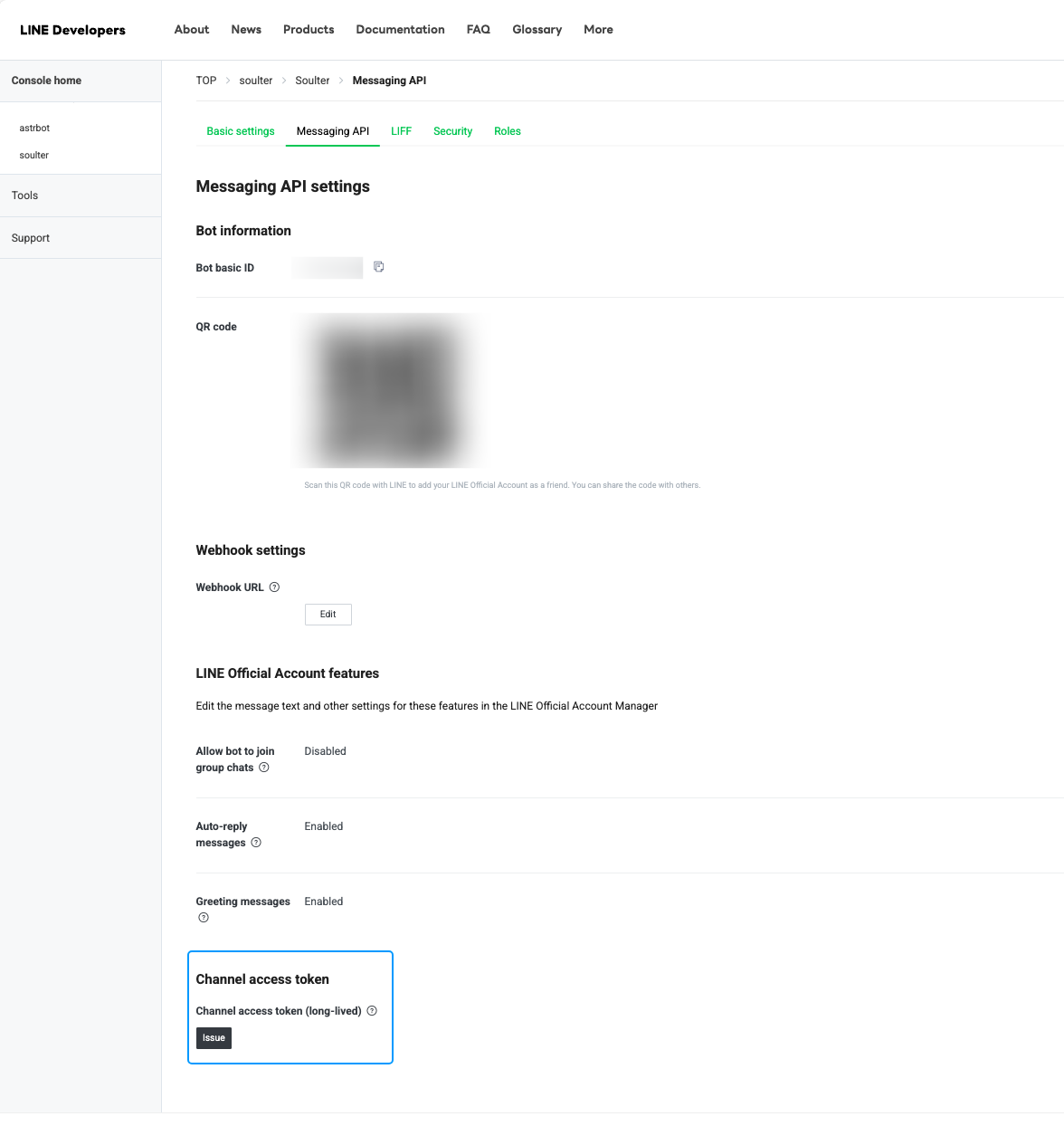
Channel secretfromBasic settings - Issue a
Channel access tokenon theMessaging APIpage
Configure AstrBot
- Open the AstrBot admin panel
- Click
Botsin the left sidebar - Click
+ Create Bot - Select
line
Fill in these fields:
ID: Custom identifier to distinguish instancesEnable: CheckedLINE Channel Access Token: yourchannel_access_tokenLINE Channel Secret: yourchannel_secretLINE Bot User ID: optional; if empty, AstrBot uses webhookdestination
Click Save.
Configure Callback URL (Unified Webhook)
The LINE adapter supports unified webhook mode only.
After saving, click View Webhook URL on the bot card and copy the URL.
Then in LINE Developers Console:
- Open
Messaging API - Paste the URL into
Webhook settings->Webhook URL - Click
Verify - Enable
Use webhook
TIP
If AstrBot is not publicly reachable, set up a public domain and reverse proxy first so LINE can access your webhook URL.
Test
- Add your Official Account as a friend in LINE
- Send a message to the bot (for example,
hi) - If the bot replies, setup is successful
If you want to use it in a group, invite the Official Account to the group first.