
Agent Sandbox Environment
What is this?
AstrBot's built-in AI lets the Agent access a computer environment by executing code, reading and writing files, and performing other operations. In AstrBot, this feature is called Agent Computer Use.
Agent Computer Use currently supports two runtime environments:
- Local environment: AstrBot Agent executes code and file operations directly in the environment running AstrBot, accessing its files and commands. Using
Seatbelton macOS orbubblewrap (bwrap)on Linux, AstrBot can provide restricted file access and code execution, limiting file access scope and network permissions for different bot users to improve the security of the local environment. - Third-party sandbox environment: AstrBot Agent executes code and file operations in a separate environment, avoiding direct access to files and commands on the host or inside the AstrBot container. This separation can provide stronger isolation, with file access, networking, and isolation between users depending on the sandbox's capabilities and configuration. Third-party sandboxes usually require additional deployment and configuration, as well as more computing resources.
Open Config → AI → Capabilities → Agent Computer Use and set Computer Use Runtime to Local machine or Third-party sandbox.
For Local machine, AstrBot attempts to enable isolation in its runtime environment. Availability depends on the operating system, kernel, account permissions, and system security policies. See Local environment below.
For Third-party sandbox, also select a Sandbox Driver and configure its endpoint, access token, and other settings. See Third-party sandbox environment below.
Local environment
Open Config → AI → Capabilities → Agent Computer Use and set Computer Use Runtime to Local machine (local).
AstrBot gives the Agent a set of tools, including Shell, Python, and filesystem tools, to access the local environment.
NOTE
If AstrBot runs in Docker, the local environment is the Linux environment inside the AstrBot container, rather than the Docker host. File and network access remain subject to the container's configuration.
Permissions are configured separately for members and administrators in the matrix shown below.
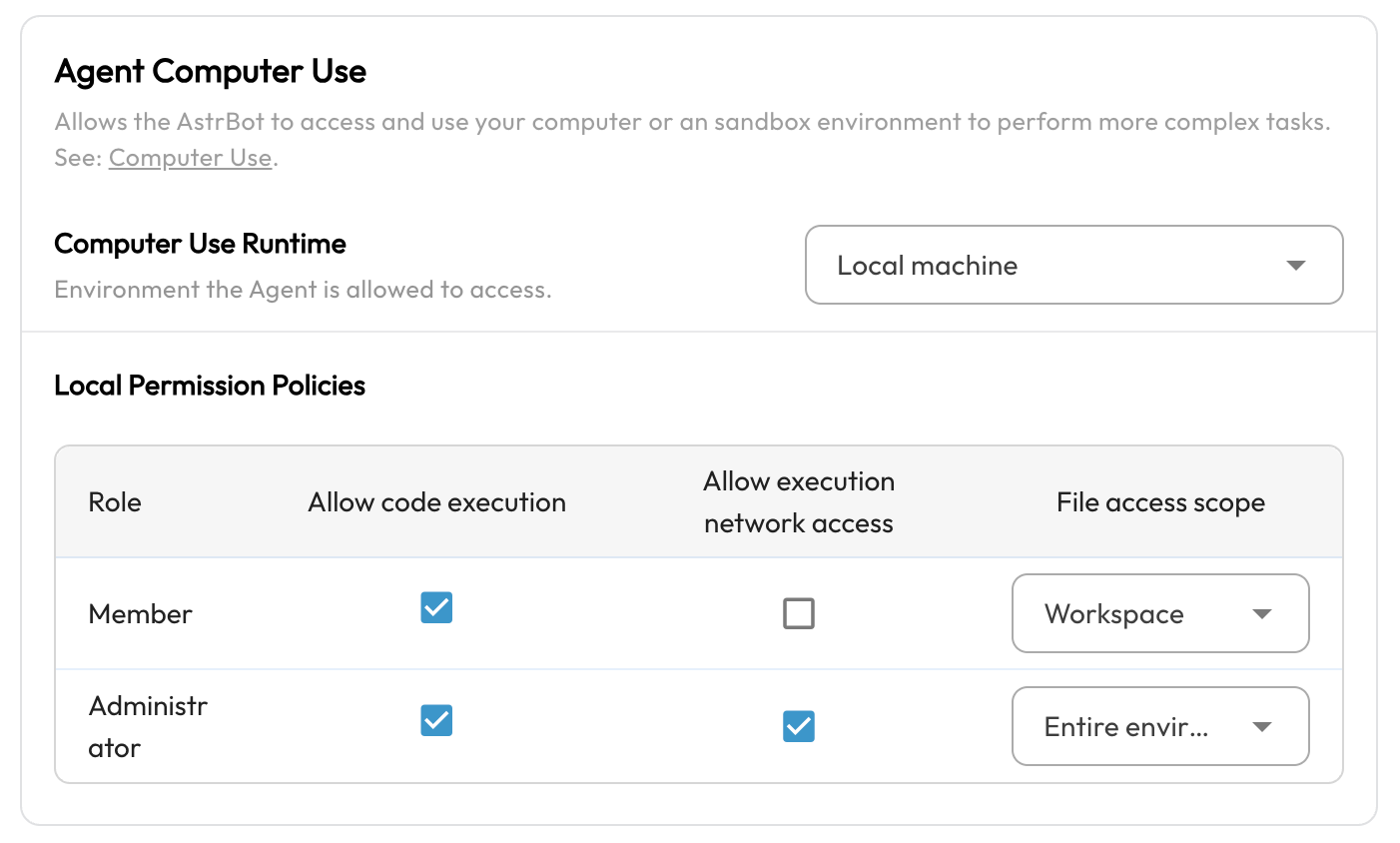
Enabling Execute code gives the Agent the astrbot_execute_shell and astrbot_execute_python tools to execute Shell commands and Python code in the local environment.
Enabling Allow network during execution permits network access during Shell/Python execution. Otherwise, network access during execution is restricted.
TIP
This network setting controls whether Shell/Python can access the network through commands such as curl or wget. It does not control the Web Search feature.
File access scope has three options: Disabled, Workspace, and Entire environment:
- Disabled: The Agent cannot access files through local Computer Use tools; filesystem tools are unavailable.
- Workspace: Filesystem tools are limited to the current user session's workspace (identified by UMO) and the following directories:
- Workspace directory, under
data/workspaces/<normalized_umo>/: read/write. ChatUI projects can also use a shared project workspace or a custom workspace. - AstrBot temporary directory,
data/temp/: read/write. - Tool temporary directory,
<system temporary directory>/.astrbot/: read/write. - Installed Agent skills,
data/skills/: read-only for members; read/write for administrators. - Plugin-provided skills,
data/plugins/<plugin_name>/skills/: read-only. - Built-in plugin skills,
<AstrBot source or installation directory>/astrbot/builtin_stars/<plugin_name>/skills/: read-only.
- Workspace directory, under
- Entire environment: The Agent can access files throughout the local environment, subject to the permissions of the account running AstrBot.
AstrBot provides astrbot_file_read_tool, astrbot_file_write_tool, astrbot_file_edit_tool, and astrbot_grep_tool for file reading, writing, editing, and content searching, respectively. When restricted code execution is enabled, the isolation backend also exposes the system tools, libraries, and Python runtime needed to execute code.
The permission matrix applies these dependencies:
- When Execute code is unchecked, Allow network during execution cannot be checked, because network permissions only apply during code execution.
- When File access scope is Disabled, neither execution nor networking can be enabled, because code execution and network access require file access.
If your environment does not meet the requirements for local isolation, such as Windows without a supported isolation backend, Linux without bubblewrap, or macOS without a usable Seatbelt launcher, the network option is hidden. The following permission combinations remain available:
- File access scope: Disabled; Execute code: No.
- File access scope: Workspace; Execute code: No. This option is available on Linux/macOS; restricted workspace file access is currently unsupported on native Windows.
- File access scope: Entire environment; Execute code: No.
- File access scope: Entire environment; Execute code: Yes. Network access during execution cannot be restricted separately.
If local isolation is unavailable, follow the instructions for your operating system and deployment environment below.
macOS users
Seatbelt is macOS's built-in sandbox mechanism. AstrBot uses /usr/bin/sandbox-exec to invoke Seatbelt and restrict the Agent's file access scope and network permissions. macOS normally includes /usr/bin/sandbox-exec.
On the Mac running AstrBot, check that the system tool exists:
bashls -l /usr/bin/sandbox-execCheck whether the system permits launching it:
bash/usr/bin/sandbox-exec -p '(version 1) (allow default)' /usr/bin/trueExit code
0means this simple check passed. AstrBot also checks the actual workspace restrictions at startup.
If the system does not provide the tool or its policies prevent using it, switch to a third-party sandbox environment.
If AstrBot runs in Docker on a Mac, follow Docker users below. The host's Seatbelt is not used directly for processes inside a Linux container.
Linux users
bubblewrap is a userspace sandboxing tool for Linux.
Check whether bubblewrap is installed and can start:
command -v bwrap
bwrap --unshare-all --ro-bind / / --proc /proc --dev /dev /bin/sh -c 'echo "AstrBot is good to go!"'
If the command prints AstrBot is good to go!, bubblewrap is installed and passes this basic startup check.
If bubblewrap is not installed, use your distribution's package manager:
sudo apt update
sudo apt install bubblewrapsudo dnf install bubblewrapsudo pacman -S bubblewrapIf startup fails:
bwrapnot found: check that it is installed in the environment running AstrBot and is on the process's startupPATH.Operation not permittedor user namespace errors: inspect user namespace limits, AppArmor, and other system security policies. Usesysctl user.max_user_namespacesto check the namespace limit andsudo journalctl -kfor relevant kernel logs.- AppArmor denial: follow your distribution's instructions to permit user namespace creation for the actual runtime. Do not disable security policies across the entire machine merely to pass the check.
- Container deployment: follow Docker users. Installing
bwrapon the host does not install it inside the container.
Restart AstrBot after fixing the environment. Its startup check determines whether Workspace execution and network control are available. If Allow network during execution appears in the permission matrix, local isolation has been enabled successfully.
Docker users
AstrBot's Docker image runs as a Linux container.
Docker already provides container-level isolation. By default, AstrBot can access files inside the container and mounted volumes, rather than the host's entire filesystem. Network access is also subject to Docker's network configuration. Local isolation uses bubblewrap inside the container to further restrict workspace file access and network access during execution. If you only need container and mounted files, you can continue using Entire environment; bwrap is not required for every Computer Use deployment.
Installing bwrap is only one part of the setup. Enabling local isolation inside Docker is relatively complex, and default Docker deployments may not allow it to start, because host user namespace settings, seccomp, AppArmor, and container permissions also apply. For isolated execution, consider a third-party sandbox environment. If you still need local isolation inside the container, consult guidance for your container platform and configure policies such as seccomp to permit the user namespaces required by bwrap.
Windows users
Local isolation is currently unsupported on native Windows. You can use a third-party sandbox environment instead.
Third-party sandbox environment
Third-party sandboxes are an optional AstrBot capability. They let the Agent execute code and file operations in a separate environment, avoiding direct access to files and commands on the host or inside the AstrBot container. Supported sandbox drivers include:
- Shipyard Neo: The currently recommended driver. It consists of Bay, Ship, and Gull, providing the control-plane API, Python/Shell/filesystem capabilities, and browser automation, respectively.
- CUA: A Computer Use sandbox runtime that can create Linux, macOS, Windows, Android, and other sandbox types and expose Shell, screenshot, mouse, keyboard, and filesystem interfaces.
- Shipyard: The legacy driver, retained for compatibility with existing deployments. Bay provides the control-plane API, and Ship provides Python/Shell/filesystem capabilities.
TIP
Third-party sandbox capabilities remain in technical preview. Report problems on GitHub.
Enabling the Sandbox Environment
- Open Config → AI → Capabilities → Agent Computer Use and set Computer Use Runtime to Third-party sandbox (
sandbox). - Choose Shipyard Neo, Shipyard, or CUA as the sandbox driver.
- Deploy the service using the corresponding instructions below, then configure its endpoint, token, or image settings.
- Click Save in the bottom-right corner of the page, then test whether the environment works.
Performance Requirements
Resource limits depend on the driver and profile; there is no single CPU or memory limit shared by all drivers. A host with at least 4 CPUs and 8 GB of memory is recommended. Actual resource use depends heavily on the number of bot users, how often they use the feature, and their workloads.
Shipyard Neo
Shipyard Neo is now the default driver. It consists of Bay, Ship, and Gull:
- Bay: the control-plane API responsible for creating and managing sandboxes
- Ship: provides Python / Shell / filesystem capabilities
- Gull: provides browser automation capabilities
For Shipyard Neo, the workspace root is fixed at /workspace. When using filesystem tools in AstrBot, you should pass paths relative to the workspace root, for example reports/result.txt, not /workspace/reports/result.txt.
TIP
Browser capability is not available in every Shipyard Neo profile. AstrBot only mounts browser-related tools when the selected profile supports the browser capability. A typical example is browser-python.
Deploy Shipyard Neo Separately
If you plan to use Shipyard Neo for the long term, it is generally better to deploy it separately on a machine with more resources, such as your homelab, a LAN server, or a dedicated cloud host, and then let AstrBot connect to Bay remotely.
The reason is that Shipyard Neo can become fairly resource-heavy when browser capability is enabled, because it needs to run a full browser runtime. On resource-constrained cloud servers, deploying AstrBot and Shipyard Neo on the same machine usually puts significant pressure on CPU and memory, which can negatively affect both stability and overall experience.
A basic deployment flow looks like this:
git clone https://github.com/AstrBotDevs/shipyard-neo
cd shipyard-neo/deploy/docker
# Modify the key settings in config.yaml, such as security.api_key
docker compose up -d
After deployment:
- Bay listens on
http://<your-host>:8114by default - In the AstrBot console, choose the
Shipyard Neodriver - Set
Shipyard Neo API Endpointto the corresponding address, for examplehttp://<your-host>:8114 - Set
Shipyard Neo Access Tokento the Bay API key; if AstrBot can access Bay'scredentials.json, you may also leave it empty and let AstrBot auto-discover it
Reference: Full config.yaml Example (with Notes)
If you want to customize the deployment parameters of Shipyard Neo, you can refer to the complete example below, adapted from deploy/docker/config.yaml. It keeps the default structure and adds explanatory notes to make each option easier to understand.
TIP
The minimum required change is security.api_key. If you are not sure what the other options do, it is usually best to keep the defaults first and only adjust profiles, resource limits, and warm pool settings as needed.
# Bay Production Config - Docker Compose (container_network mode)
#
# Bay runs inside Docker and communicates with Ship/Gull containers
# through a shared Docker network.
# In this mode, sandbox containers do not need to expose ports to the host.
#
# At minimum, update:
#   1. security.api_key  — set a strong random secret

server:
  # Bay API listen address
  host: "0.0.0.0"
  # Bay API listen port
  port: 8114

database:
  # SQLite is the default for single-node deployment.
  # For multi-instance / HA deployments, you can switch to PostgreSQL, for example:
  # url: "postgresql+asyncpg://user:pass@db-host:5432/bay"
  url: "sqlite+aiosqlite:///./data/bay.db"
  echo: false

driver:
  # Docker is the default driver
  type: docker

  # Whether to pull images when creating new sandboxes.
  # In production, always is usually recommended so you get the latest images.
  image_pull_policy: always

  docker:
    # Docker Socket endpoint
    socket: "unix:///var/run/docker.sock"

    # When Bay, Ship, and Gull all run in containers,
    # container_network is recommended for direct container-network communication.
    connect_mode: container_network

    # Shared network name; must match the network in docker-compose.yaml
    network: "bay-network"

    # Whether to expose sandbox container ports to the host.
    # Disabling this is generally recommended in production.
    publish_ports: false
    host_port: null

cargo:
  # Cargo storage root path on the Bay side
  root_path: "/var/lib/bay/cargos"
  # Default workspace size limit (MB)
  default_size_limit_mb: 1024
  # Path mounted inside the sandbox. This is AstrBot/Neo's workspace root.
  mount_path: "/workspace"

security:
  # Required: set a strong random secret, for example openssl rand -hex 32
  api_key: "CHANGE-ME"
  # Whether anonymous access is allowed. false is recommended for production.
  allow_anonymous: false

# Proxy environment variable injection for containers.
# When enabled, Bay injects HTTP(S)_PROXY and NO_PROXY into sandbox containers.
proxy:
  enabled: false
  # http_proxy: "http://proxy.example.com:7890"
  # https_proxy: "http://proxy.example.com:7890"
  # no_proxy: "my-internal.service"

# Warm Pool: keep standby sandboxes pre-warmed to reduce cold-start latency.
# When a user creates a sandbox, Bay will first try to claim a pre-warmed instance.
warm_pool:
  enabled: true
  # Number of warmup queue workers
  warmup_queue_workers: 2
  # Maximum warmup queue size
  warmup_queue_max_size: 256
  # Policy when the queue is full
  warmup_queue_drop_policy: "drop_newest"
  # Useful threshold for operational alerts
  warmup_queue_drop_alert_threshold: 50
  # Warm pool maintenance interval (seconds)
  interval_seconds: 30
  # Whether to start warm-pool maintenance when Bay starts
  run_on_startup: true

profiles:
  # ── Standard Python sandbox ────────────────────────
  - id: python-default
    description: "Standard Python sandbox with filesystem and shell access"
    image: "ghcr.io/astrbotdevs/shipyard-neo-ship:latest"
    runtime_type: ship
    runtime_port: 8123
    resources:
      cpus: 1.0
      memory: "1g"
    capabilities:
      - filesystem  # includes upload/download
      - shell
      - python
    # Idle timeout (seconds)
    idle_timeout: 1800
    # Keep 1 warm instance ready
    warm_pool_size: 1
    env: {}
    # Optional profile-level proxy override
    # proxy:
    #   enabled: false

  # ── Data-science sandbox (more resources) ──────────
  - id: python-data
    description: "Data science sandbox with extra CPU and memory"
    image: "ghcr.io/astrbotdevs/shipyard-neo-ship:latest"
    runtime_type: ship
    runtime_port: 8123
    resources:
      cpus: 2.0
      memory: "4g"
    capabilities:
      - filesystem  # includes upload/download
      - shell
      - python
    idle_timeout: 1800
    warm_pool_size: 1
    env: {}

  # ── Browser + Python multi-container sandbox ───────
  - id: browser-python
    description: "Browser automation with Python backend"
    containers:
      - name: ship
        image: "ghcr.io/astrbotdevs/shipyard-neo-ship:latest"
        runtime_type: ship
        runtime_port: 8123
        resources:
          cpus: 1.0
          memory: "1g"
        capabilities:
          - python
          - shell
          - filesystem  # includes upload/download
        # These capabilities are primarily handled by the ship container
        primary_for:
          - filesystem
          - python
          - shell
        env: {}
      - name: browser
        image: "ghcr.io/astrbotdevs/shipyard-neo-gull:latest"
        runtime_type: gull
        runtime_port: 8115
        resources:
          cpus: 1.0
          memory: "2g"
        capabilities:
          - browser
        env: {}
    idle_timeout: 1800
    warm_pool_size: 1

gc:
  # Automatic GC is recommended in production
  enabled: true
  run_on_startup: true
  # GC interval (seconds)
  interval_seconds: 300

  # Must be unique in multi-instance deployments
  instance_id: "bay-prod"

  idle_session:
    enabled: true
  expired_sandbox:
    enabled: true
  orphan_cargo:
    enabled: true
  orphan_container:
    # Recommended in production to clean up leaked containers
    enabled: true
A practical way to think about this file:
- Minimum required change:
security.api_key - Most commonly adjusted options: resource limits,
warm_pool_size, andidle_timeoutunderprofiles - If you need browser capability: use or customize the
browser-pythonprofile - If you want to reduce cold-start time: keep
warm_pool.enabled: trueand increasewarm_pool_sizefor frequently used profiles - If resources are limited: reduce
warm_pool_size, or even disablewarm_pool - If outbound proxy access is needed: configure the top-level
proxy, or override it per profile
About Shipyard Neo Reuse and Persistence
Shipyard Neo has several important concepts:
- Sandbox: the stable, externally visible resource unit
- Session: the actual running container session, which may be stopped or rebuilt
- Cargo: the persistent workspace volume mounted at
/workspace
From AstrBot's perspective, the current implementation caches the sandbox booter by request session_id; in the default main-agent flow, this session_id usually equals the message-session identifier unified_msg_origin. As a result, follow-up requests from the same message session will usually continue using the same Neo sandbox; if the sandbox becomes unavailable, it will be rebuilt automatically.
For more detailed explanations of TTL and persistence behavior, see the later sections on “Shipyard Neo Sandbox TTL” and “Data Persistence in the Sandbox Environment”.
Configuring Shipyard Neo
If you choose Shipyard Neo, the main configuration items are:
Shipyard Neo API Endpoint- For a combined deployment, use
http://bay:8114 - For a separated deployment, use the actual address, such as
http://<your-host>:8114
- For a combined deployment, use
Shipyard Neo Access Token- Fill in the Bay API key
- For an official combined deployment where AstrBot can access Bay's
credentials.json, you may leave it empty for automatic discovery
Shipyard Neo Profile- For example
python-defaultorbrowser-python - If left empty, AstrBot will try to choose a profile with richer capabilities, preferring one that includes the
browsercapability, and fall back topython-defaultif needed
- For example
Shipyard Neo Sandbox TTL- The upper lifetime limit of the sandbox, defaulting to 3600 seconds (1 hour)
About Shipyard Neo Sandbox TTL
In Shipyard Neo:
- TTL represents the upper lifetime bound of the sandbox
- The selected profile also defines a separate idle timeout (
idle_timeout) - Capability calls from AstrBot usually refresh the idle timeout, rather than directly extending the TTL
keepaliveonly extends the idle timeout; it does not automatically start a new session and does not extend the TTL
Data persistence
The workspace root of Shipyard Neo is fixed at /workspace.
Persistence is provided by Cargo:
- Filesystem data is stored in Cargo and mounted at
/workspace - Even if the underlying Session is stopped or rebuilt, the data in Cargo is usually retained
- For profiles with browser capability, browser state may also be persisted together, for example under
/workspace/.browser/profile/
CUA
CUA is a sandbox runtime for Computer Use.
The Agent can use the following tools in a CUA sandbox. Actual availability depends on the selected image and runtime:
| Capability | Tool exposed to the Agent | Purpose |
|---|---|---|
| Shell execution | astrbot_execute_shell | Execute commands and launch programs |
| Python execution | astrbot_execute_ipython | Execute Python code |
| File reading | astrbot_file_read_tool | Read files |
| File writing | astrbot_file_write_tool | Create or overwrite files |
| File editing | astrbot_file_edit_tool | Replace specified text in files |
| File searching | astrbot_grep_tool | Search file contents by pattern |
| File upload | astrbot_upload_file | Upload files from the environment running AstrBot to the sandbox |
| File download | astrbot_download_file | Download files from the sandbox, optionally sending them to the user |
| Desktop screenshot | astrbot_cua_screenshot | Capture a screenshot for model inspection or send it to the user |
| Mouse click | astrbot_cua_mouse_click | Click at coordinates with a specified mouse button |
| Keyboard input | astrbot_cua_keyboard_type | Type text into the currently focused control |
WARNING
CUA is optional and is not installed by default with AstrBot. If you select CUA without installing the cua package in AstrBot's Python environment, sandbox startup reports the missing dependency.
When to choose CUA
Choose CUA when you:
- Need GUI automation, including desktop screenshots, mouse clicks, and keyboard input.
- Need to test behavior across OS images, such as Linux, Windows, and Android.
- Already have a local or cloud CUA runtime deployed.
If you only need a reliable Python/Shell/filesystem sandbox without desktop GUI interaction, prefer Shipyard Neo. It fits AstrBot's workspace, Skills synchronization, and long-running usage more closely.
Install CUA dependencies
In the WebUI, open Data & Logs → Logs, click Install Pip Package, and enter cua to install the dependency. You can also install it directly in AstrBot's Python environment:
For source or virtual-environment deployments:
bashpip install cuaFor AstrBot environments managed with
uv, run this in the project directory:bashuv pip install cua
CUA also has requirements specific to its runtime:
- Local Linux containers usually require Docker.
- Local Linux/Windows VMs usually require QEMU or the corresponding CUA runtime.
- macOS VMs usually require the CUA/Lume runtime.
- Cloud CUA requires a CUA API key.
See the CUA documentation for host requirements, supported images, and local runtime installation.
Configure CUA in AstrBot
Open Config → AI → Capabilities → Agent Computer Use, then set:
- Computer Use Runtime:
sandbox(Third-party sandbox). - Sandbox Driver:
CUA.
CUA settings include:
CUA Image: The image to launch, commonlylinux,macos,windows, orandroid. Default:linux.CUA OS Type: The image's operating system. Default:linux. This determines whether AstrBot can use POSIX Shell fallbacks.CUA Sandbox TTL: Sandbox lifetime in seconds. Default:3600.CUA Telemetry Enabled: Whether CUA telemetry is enabled. Disabled by default.CUA Local Runtime: Whether to use the local runtime. Enabled by default. Disable it to use the CUA SDK's cloud runtime.CUA API Key: The API key for cloud CUA. Only provide it when using the cloud runtime.
A minimal local Linux container configuration is:
Computer Use Runtime = sandbox
Sandbox Driver = CUA
CUA Image = linux
CUA OS Type = linux
CUA Local Runtime = true
CUA Sandbox TTL = 3600
For cloud CUA, use:
Computer Use Runtime = sandbox
Sandbox Driver = CUA
CUA Image = linux
CUA OS Type = linux
CUA Local Runtime = false
CUA API Key = <your-cua-api-key>
WARNING
Do not include the CUA API key in public logs, screenshots, or issues.
Notes on using CUA
- The
linuximage is generally suitable for Shell, Python, filesystem, and desktop automation tests. - Non-POSIX images, such as
windowsandandroid, may not support commands such assh,cat,ls,rm, orbase64. AstrBot returns explicit errors for fallback operations that require unavailable commands. - To open a browser or GUI application in the sandbox, use Shell background execution where supported, for example
background=true, to avoid blocking subsequent tool calls. - Sending a sandbox file path directly to the user usually does not work. Use AstrBot's sandbox download tool to download the file into AstrBot's temporary directory before sending it.
- CUA and Shipyard Neo have different workspace semantics. Shipyard Neo uses a fixed
/workspaceroot; CUA's working directory and paths depend on the image and runtime.
Shipyard (Legacy)
The following content describes the older Shipyard driver. It is kept for compatibility with existing legacy deployments.
Deploying AstrBot and Shipyard with Docker Compose
If you have not deployed AstrBot yet, or want to use the older recommended deployment method with sandbox support, you can still deploy AstrBot with Docker Compose using the following commands:
git clone https://github.com/AstrBotDevs/AstrBot
cd AstrBot
# Modify the environment variables in compose-with-shipyard.yml, such as the Shipyard access token
docker compose -f compose-with-shipyard.yml up -d
docker pull soulter/shipyard-ship:latest
This starts a Docker Compose stack containing the AstrBot main program and the sandbox environment.
Deploying Shipyard Separately
If AstrBot is already deployed but the sandbox environment is not, you can deploy Shipyard separately.
mkdir astrbot-shipyard
cd astrbot-shipyard
wget https://raw.githubusercontent.com/AstrBotDevs/shipyard/refs/heads/main/pkgs/bay/docker-compose.yml -O docker-compose.yml
# Modify the environment variables in docker-compose.yml, such as the Shipyard access token
docker compose -f docker-compose.yml up -d
docker pull soulter/shipyard-ship:latest
After successful deployment, Shipyard listens on http://<your-host>:8156 by default.
TIP
If you deploy AstrBot with Docker, you can also place Shipyard on the same Docker network as AstrBot so you do not need to expose Shipyard's port to the host.
Configuring Shipyard (Legacy)
If you choose the legacy Shipyard driver, the relevant configuration items are:
Shipyard API Endpoint- If you use the Docker Compose deployment above, set it to
http://shipyard:8156 - If Shipyard is deployed separately, use the corresponding address, such as
http://<your-host>:8156
- If you use the Docker Compose deployment above, set it to
Shipyard Access Token- Fill in the access token you configured when deploying Shipyard
Shipyard Ship Lifetime (seconds)- Defines the lifetime of each sandbox instance, default 3600 seconds (1 hour)
Shipyard Ship Session Reuse Limit- Defines the maximum number of sessions that can reuse the same sandbox instance, default 10
About Shipyard Ship Lifetime (seconds)
The following explanation applies only to the legacy Shipyard driver:
The lifetime of a sandbox instance defines the maximum amount of time that instance can exist before being destroyed. This value should be chosen according to your use case and available resources.
- When a new session joins an existing sandbox instance, the instance automatically extends its lifetime to the TTL requested by that session
- When an operation is performed on a sandbox instance, the instance automatically extends its lifetime to the current time plus TTL
Data persistence
Shipyard allocates a working directory for each session under /home/<unique session ID>.
Shipyard automatically mounts the /home directory from the sandbox environment to ${PWD}/data/shipyard/ship_mnt_data on the host. When a sandbox instance is destroyed and a session later requests the sandbox again, Shipyard recreates a new instance and remounts the previously persisted data to preserve continuity.