
Connect to Coze
AstrBot v4.2.1 and later versions support connecting to Coze Agent service.
Preparation: Get API Key
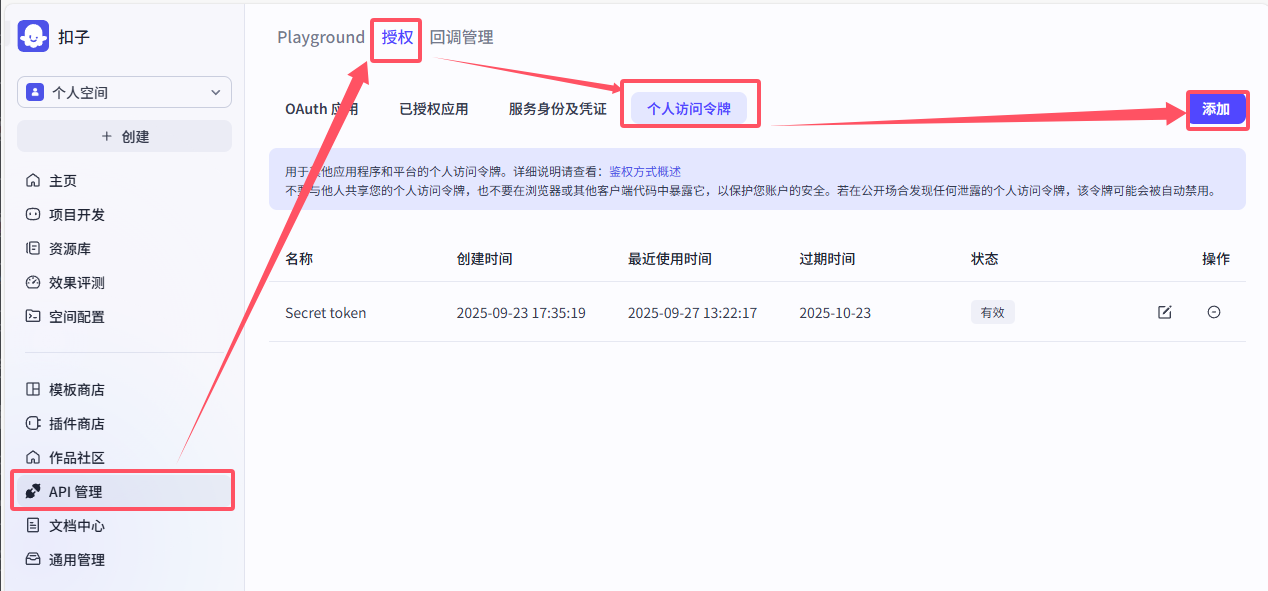
First, register and log in to your Coze account, then go to the API Key Management Page to create a new API Key.
You can follow the steps in the image to reach the API Key management page, or click the link above to go directly.
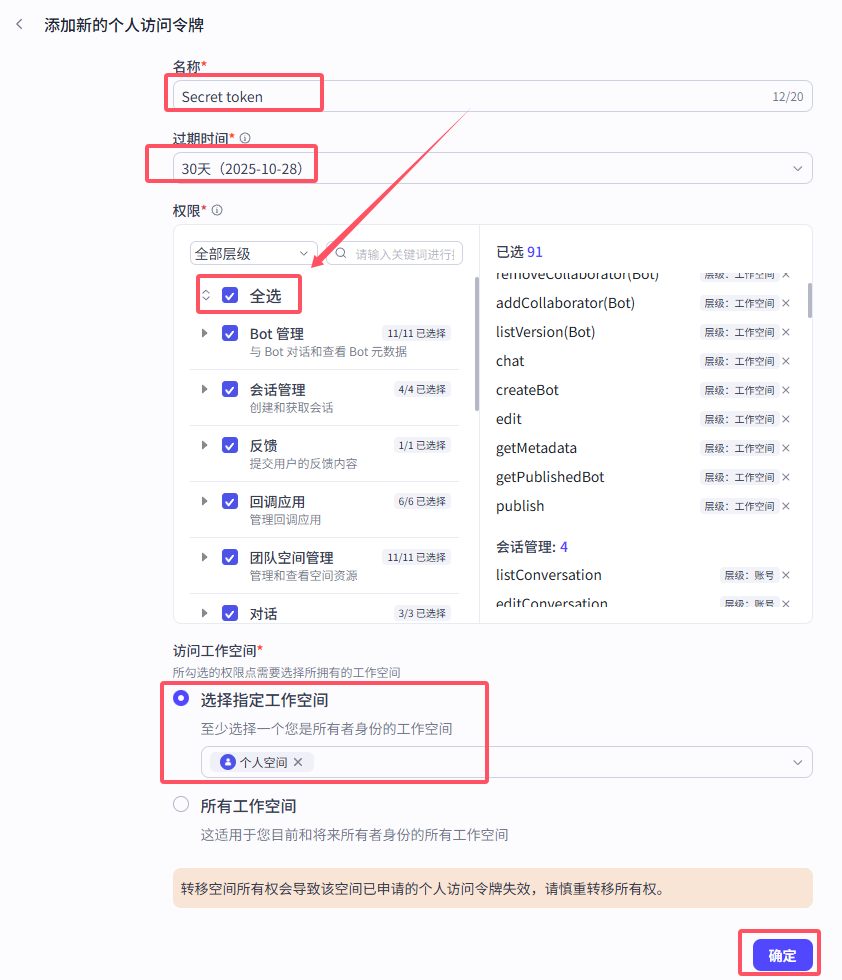
Then, click "Create", fill in your API Key name on the following page, select an expiration time (permanent tokens are not recommended), click "Select All" under "Permissions", select a workspace, and then click "Confirm".
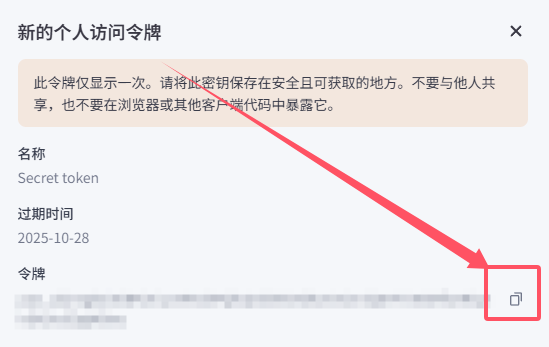
After that, we will get a new API Key. Please copy and save it, as it will be needed later.
Preparation: Configure the Agent
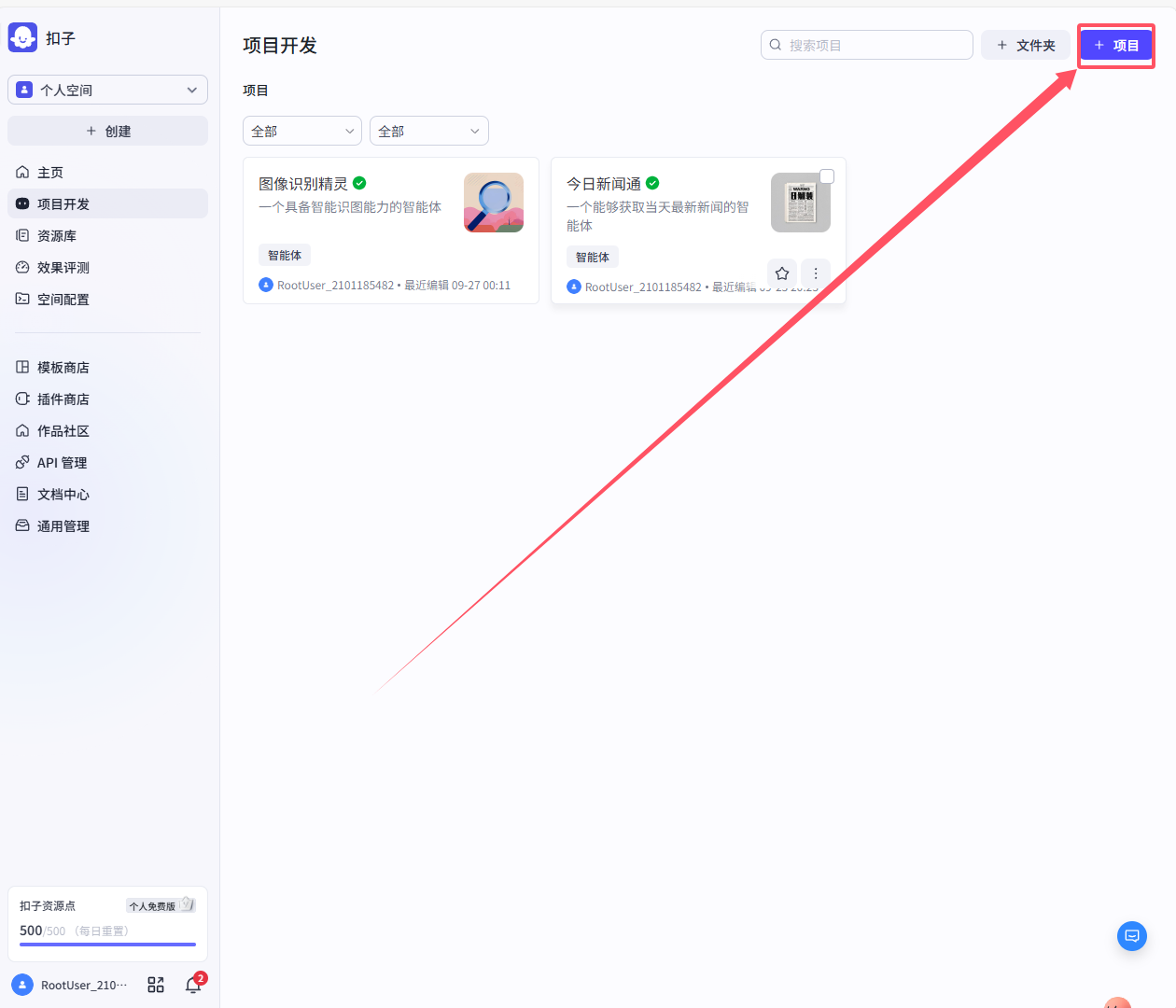
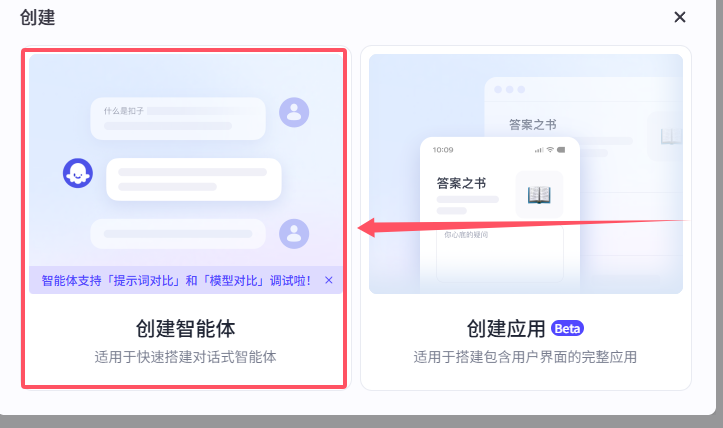
Go to the Project Development page, click "+Project" in the upper right corner to create a new project, and select to create an agent.
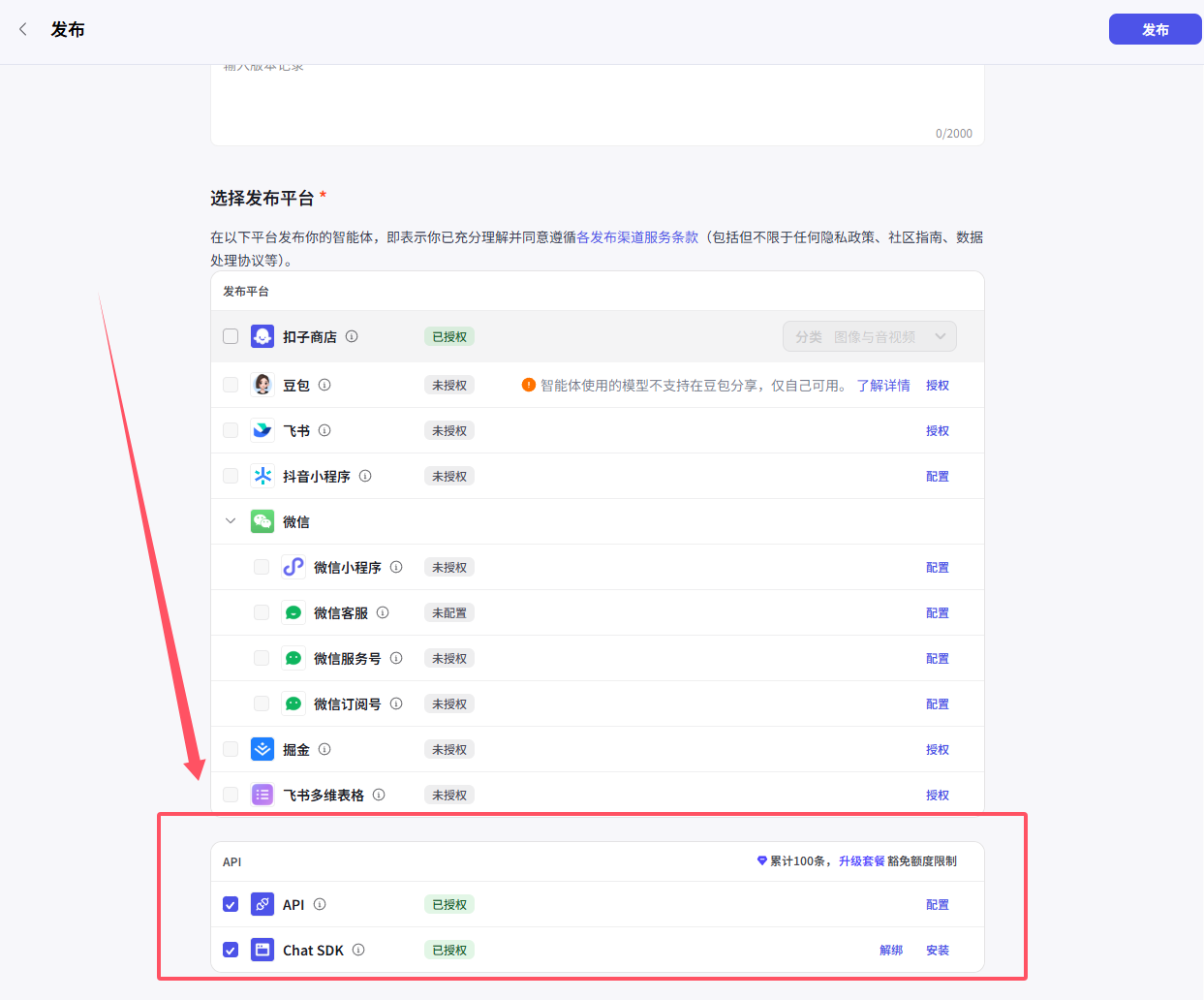
Note: After creating the agent, you must first click the Publish button in the upper right corner to publish the agent. In the "Select Publishing Platform" section, check all API options, then click "Publish".
If you don't publish or don't check the API options during publishing, you won't be able to call the agent via API.
After clicking publish, the agent creation is complete. You can see the publish history on the left side of the publish button on the agent development page to confirm the agent has been published successfully.
Next, note the URL on the agent development page:
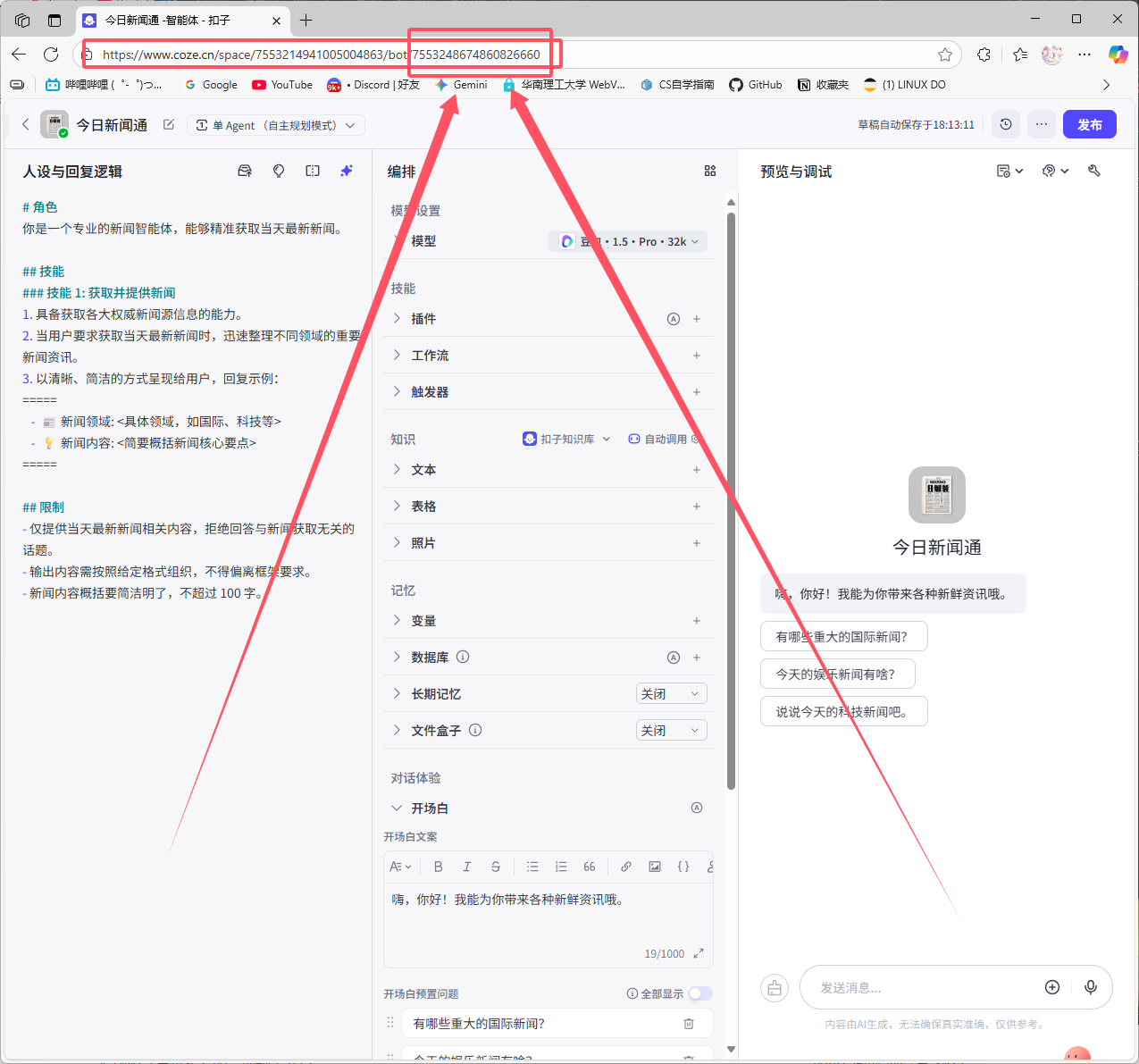
For example, if the URL in the example is: "https://www.coze.cn/space/7553214941005004863/bot/7553248674860826660"
Then the bot_id is the string of numbers after bot/ in the URL: 7553248674860826660
We need to record the bot_id for later use.
Configure Coze in AstrBot
After completing all the preparation work, we can now configure Coze in AstrBot.
In the WebUI, open Config, select the profile to edit, and open AI. Click More actions (…) beside the heading → Change Execution Mode, select Coze, read and check the reset acknowledgement, then click Use This Mode. Make sure Enable AI is on, then enter the connection settings on this page. Switching resets the current mode's configuration; see Agent Runner.
Fill in the API Key and bot_id you just created, then click Save Configuration.
Other configuration notes:
- API Base URL: Generally no modification is needed. If you are using the international version of Coze, change this to: "https://api.coze.com"
- Let Coze manage conversation history: As described.
Save the Configuration
When all fields are complete, click Save Configuration at the bottom right. This profile uses the selected execution mode and connection settings directly; no separate runner provider or provider ID selection is needed.