
Connect to DingTalk
Supported Basic Message Types
Version v4.15.0.
| Message Type | Receive | Send | Notes |
|---|---|---|---|
| Text | Yes | Yes | |
| Image | Yes | Yes | |
| Voice | No | Yes | |
| Video | No | Yes | |
| File | No | Yes |
Proactive message push: Supported.
Create and Configure the App
DingTalk supports two setup methods: one-click QR creation in AstrBot, or manually creating an app in DingTalk Open Platform.
Option 1: One-click QR Creation
AstrBot version requirement: >= v4.25.0.
Open AstrBot Dashboard -> Platforms -> Add Adapter, then select DingTalk.
Under Creation Method, select One-click QR setup, scan the QR code with the DingTalk mobile app, then create or bind a bot on the DingTalk authorization page. After creation succeeds, AstrBot automatically fills in ClientID and ClientSecret. Click Save to finish.
After QR creation succeeds, continue checking the event subscription, version release, and group installation steps below.
Option 2: Manual Creation
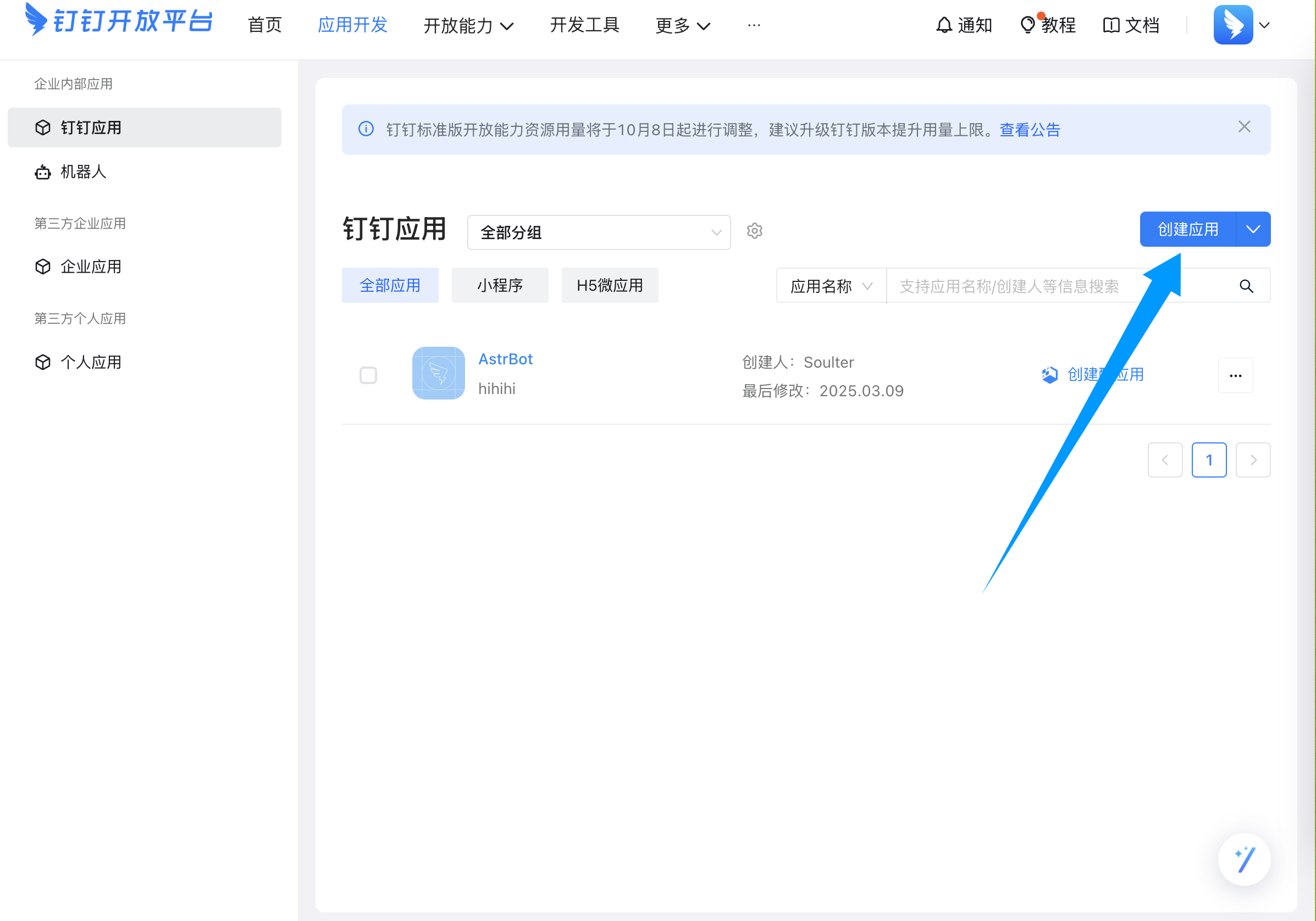
Go to the DingTalk Open Platform, then create an app:
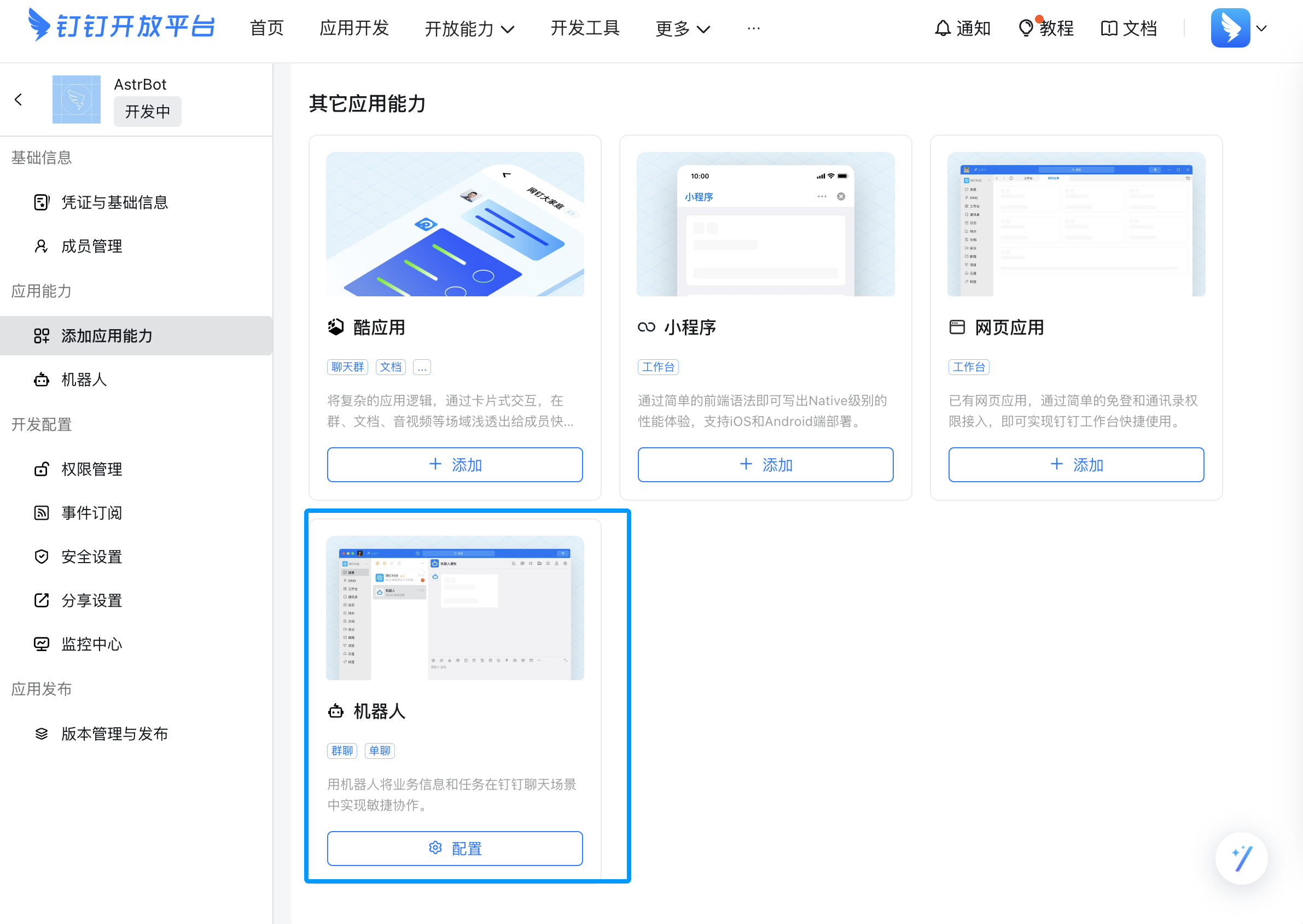
After creation, add app capability and choose Bot:
Open Bot settings and fill in bot information:
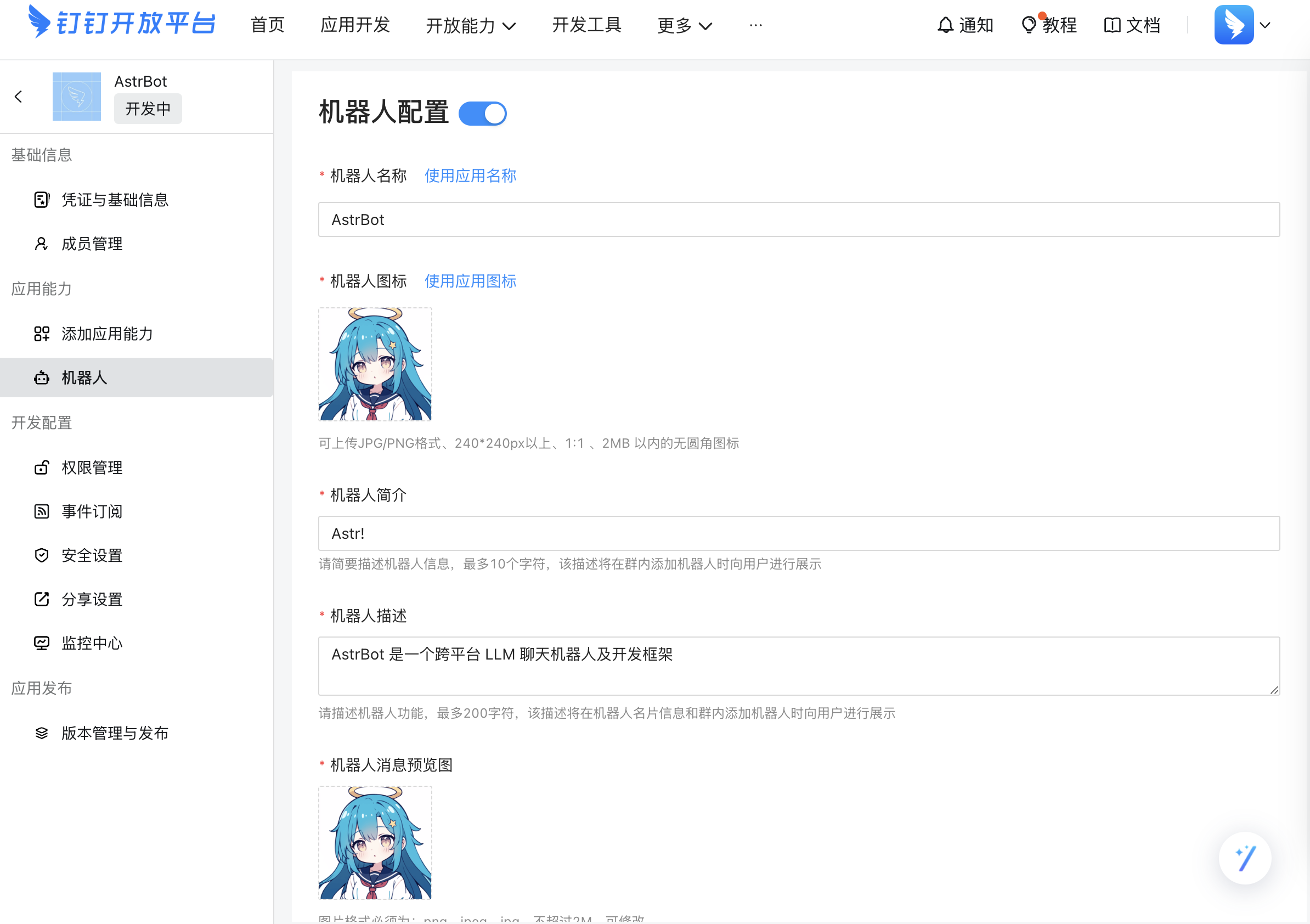
After confirming all settings, click Publish.
Go to Credentials & Basic Information, then copy ClientID and ClientSecret.
Connect in AstrBot
Open AstrBot Dashboard -> Platforms -> Add Adapter, then create a DingTalk adapter.
If you want AstrBot to create the app for you, select One-click QR setup and complete the scan. If you already created the app yourself, select Manual setup, fill in ClientID and ClientSecret, then click Save. AstrBot will request authorization from DingTalk Open Platform automatically.
Back in DingTalk Open Platform, open Event Subscriptions, select Stream mode push, and click Save. If successful, you will see a connected status.
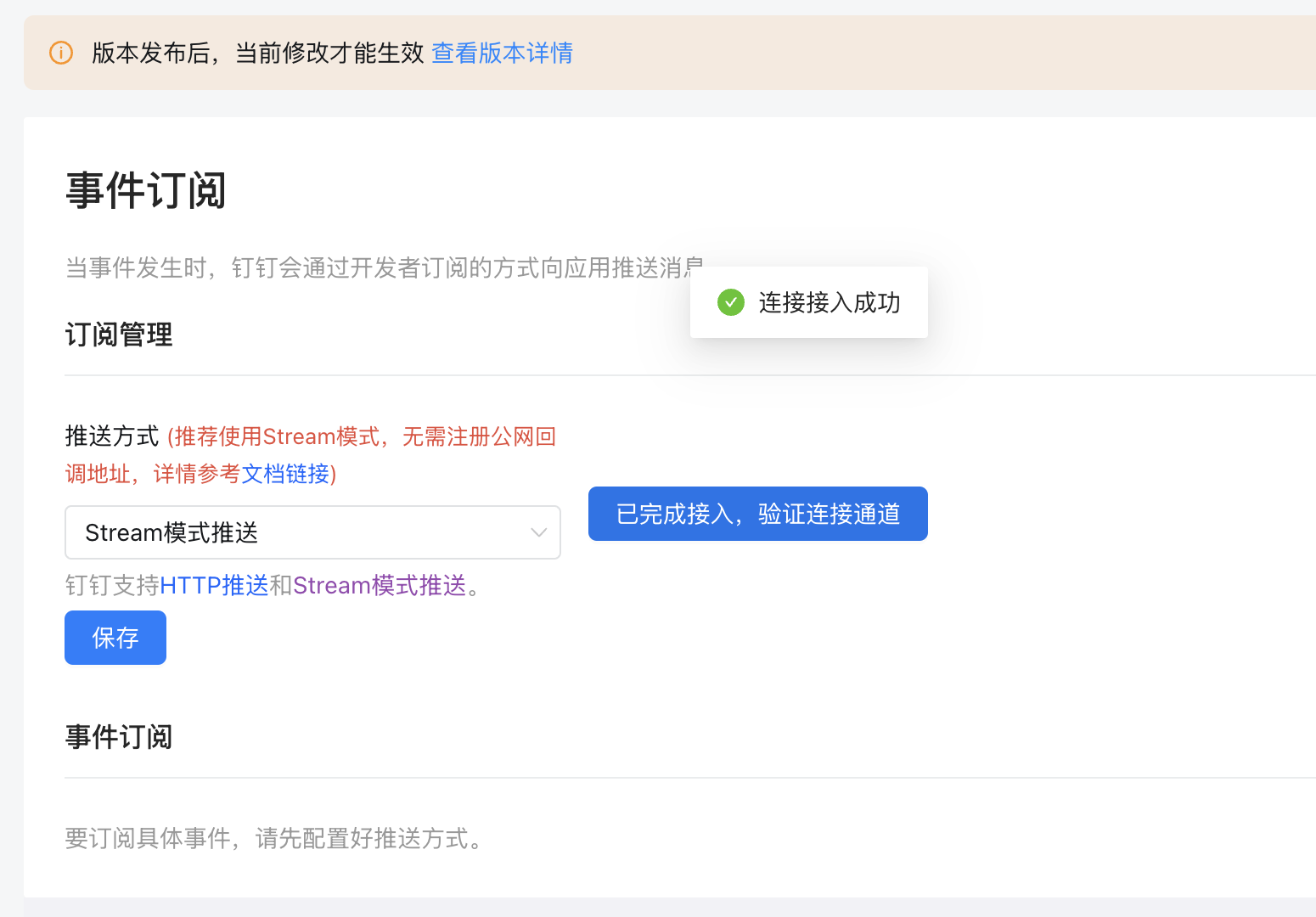
Save the configuration.
Publish a Version
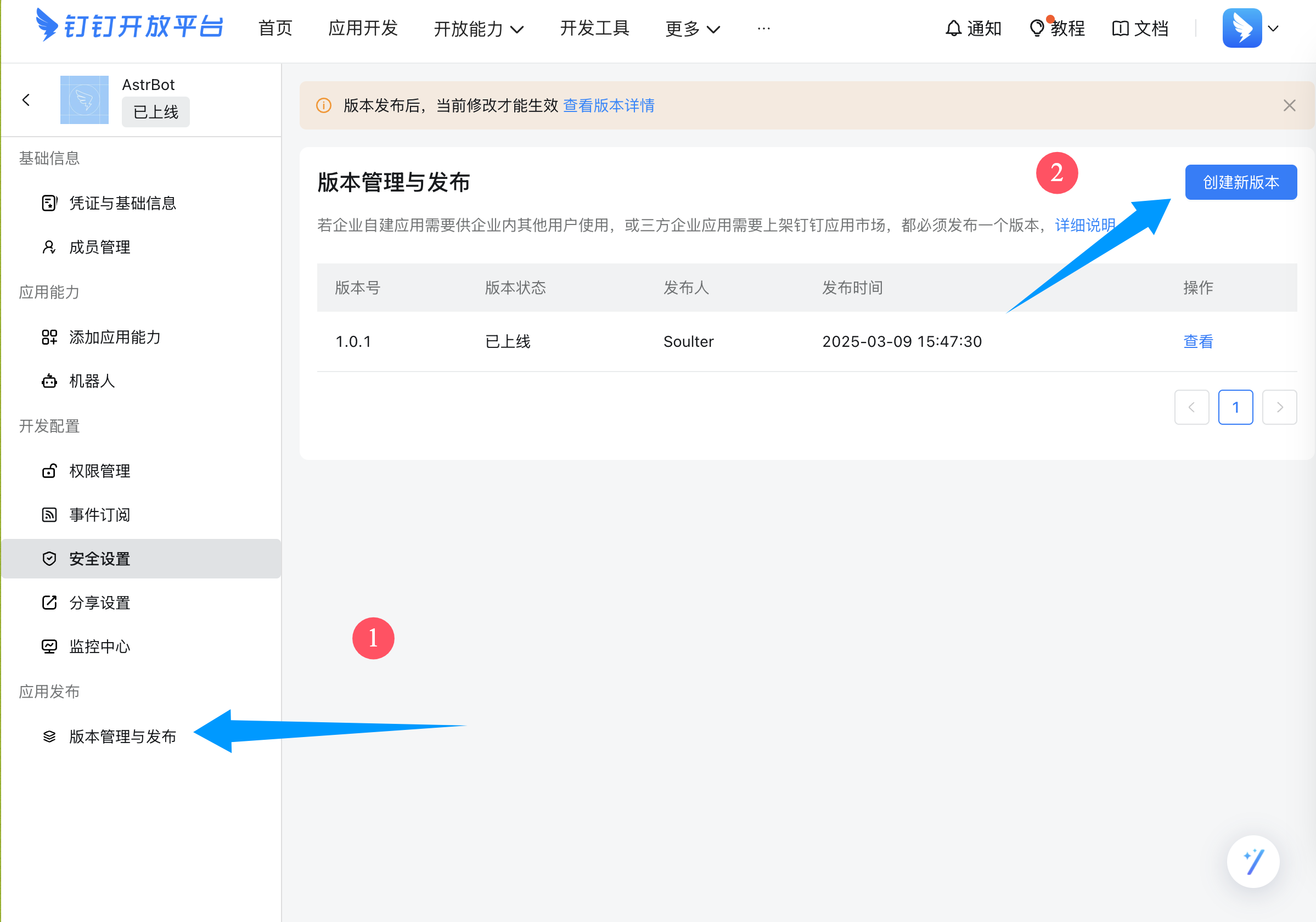
In the left sidebar, open Version Management and Release, then create a new version.
Fill in version number, description, and visibility scope (all employees or as needed), then save and publish.
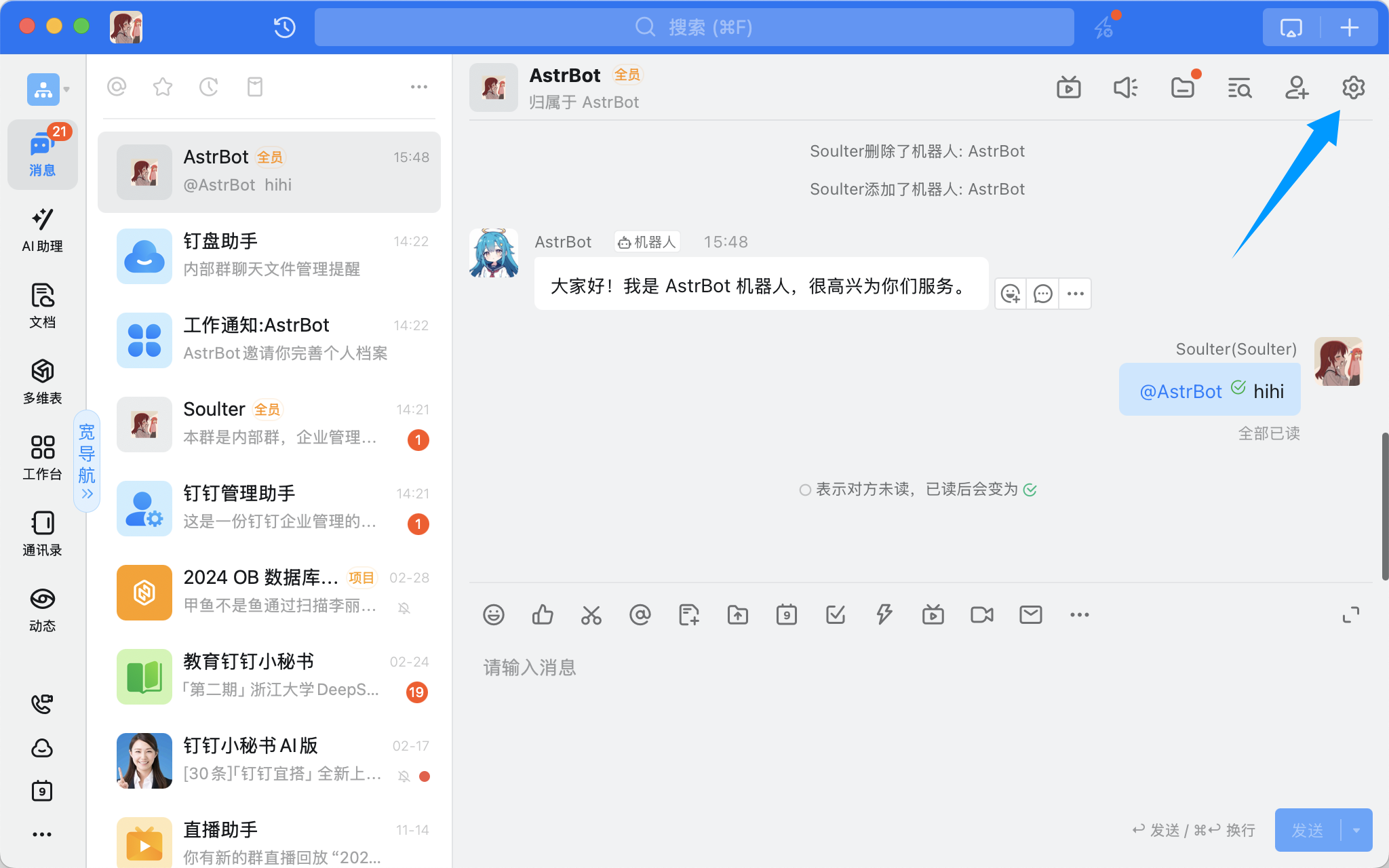
Open a DingTalk group chat and click the top-right settings:
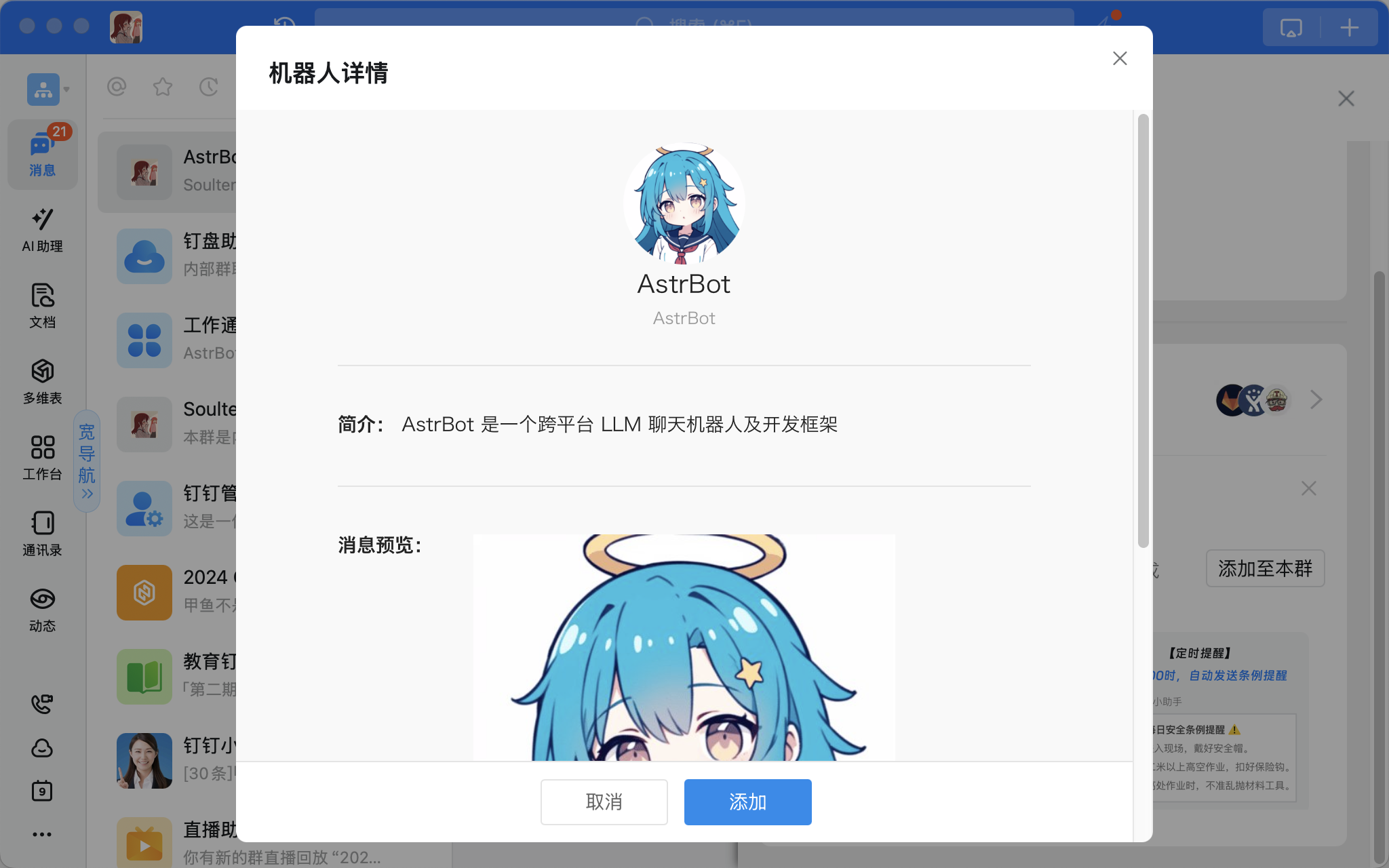
Scroll down to Add Bot, select the bot you just created, and add it:
Done
In a group chat, mention the bot and send /help. If the bot replies, the integration is successful.