
Connecting to Slack
Create AstrBot Slack Platform Adapter
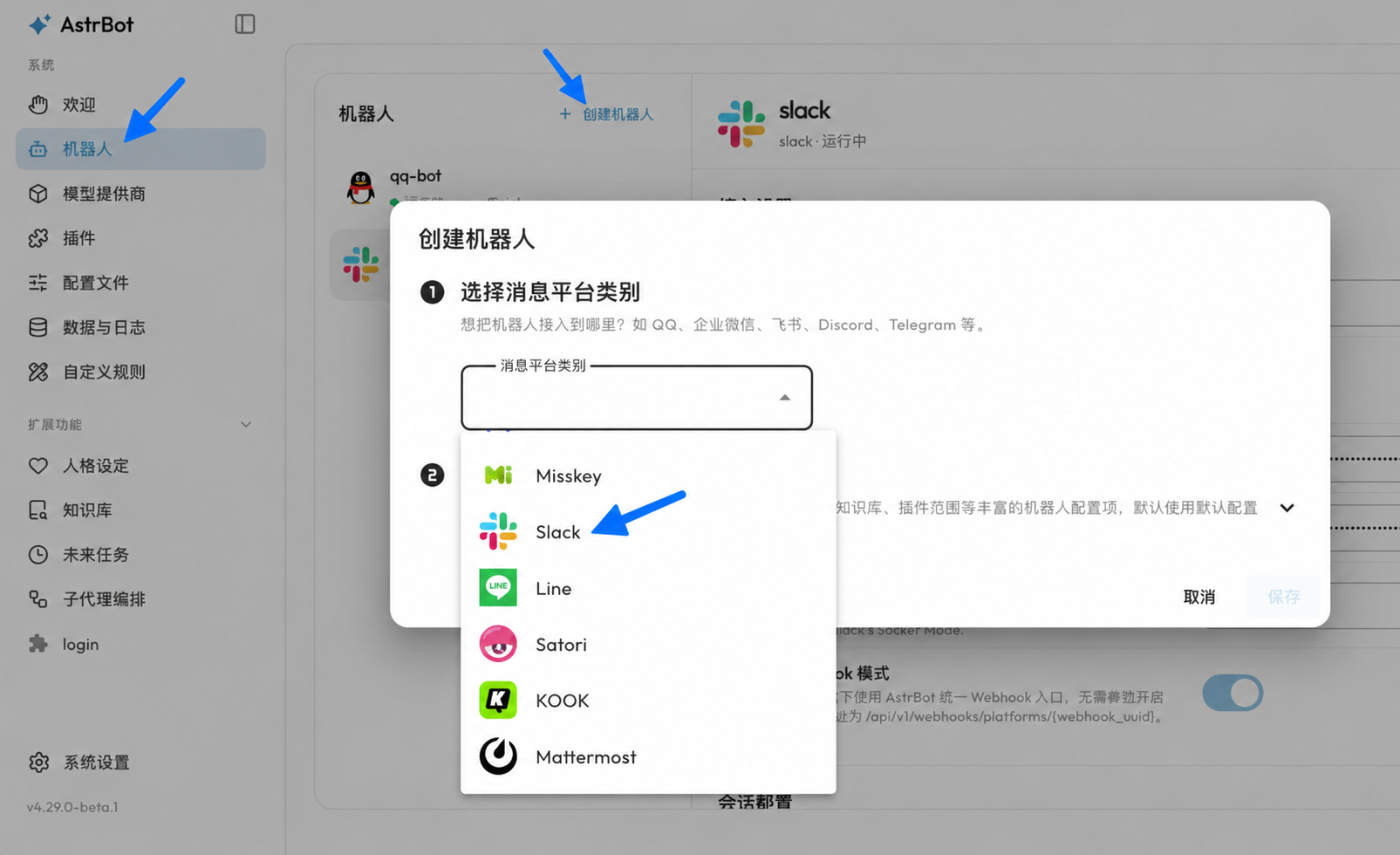
Navigate to the Platforms page, click Add Adapter, find Slack and click to enter the Slack configuration page.
Create an App in Slack
Slack supports two connection methods: Webhook and Socket. If you don't have a public server and your message volume is relatively small, we recommend using the socket method. If you have a public server (or have technical knowledge about setting up tunnels, such as Cloudflare Tunnel), you can choose the webhook method. The socket method is relatively simpler to deploy.
- Create a Slack account and a Workspace.
- Go to Apps Management, click "Create New App" -> "Blank app" -> "Continue". Enter the
App Name, select the workspace to add it to, then click "Create". - (Webhook only) Obtain the
Signing Secret. In the Basic Information page on the left sidebar, findSigning Secretunder App Credentials, click Show and copy it to the signing_secret field in the platform adapter configuration.
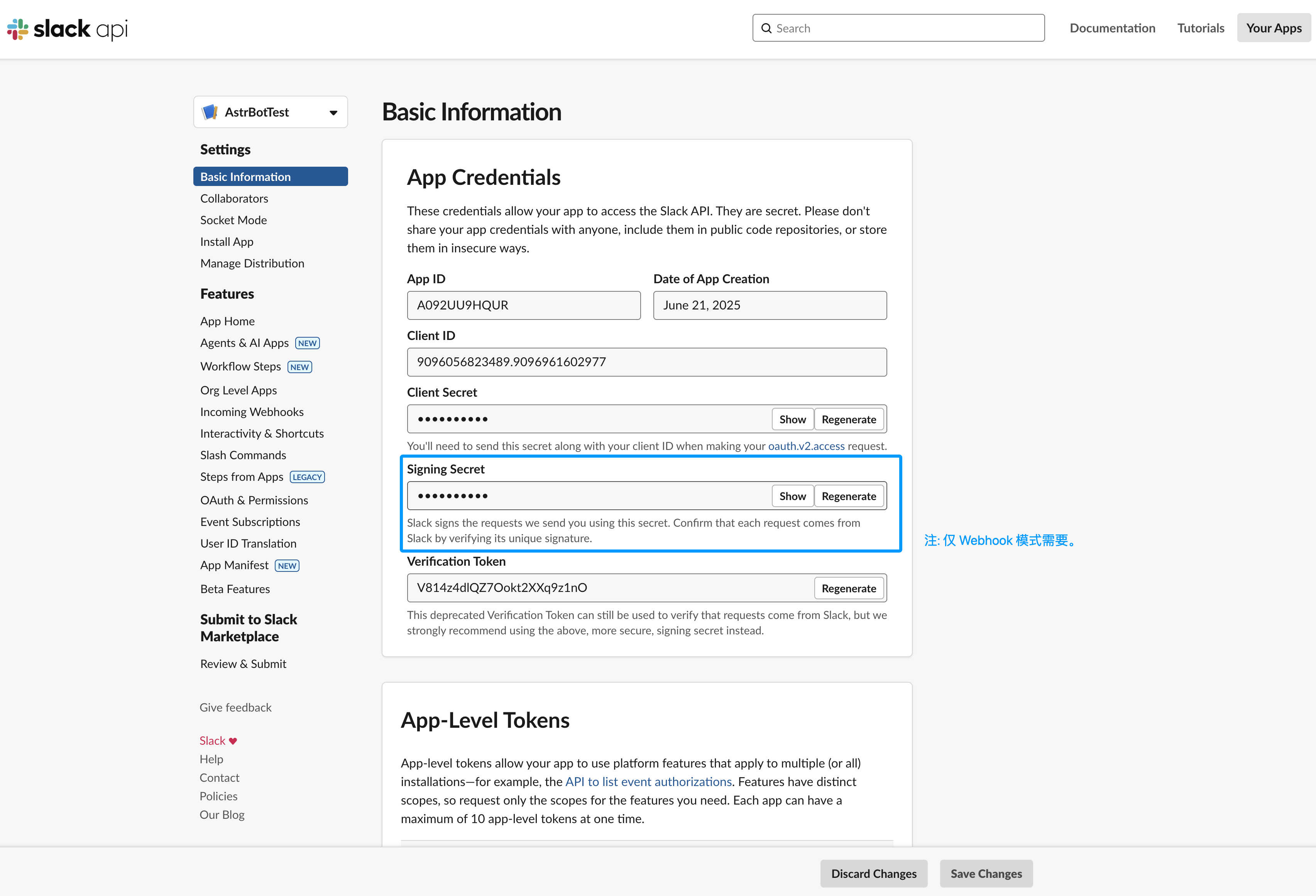
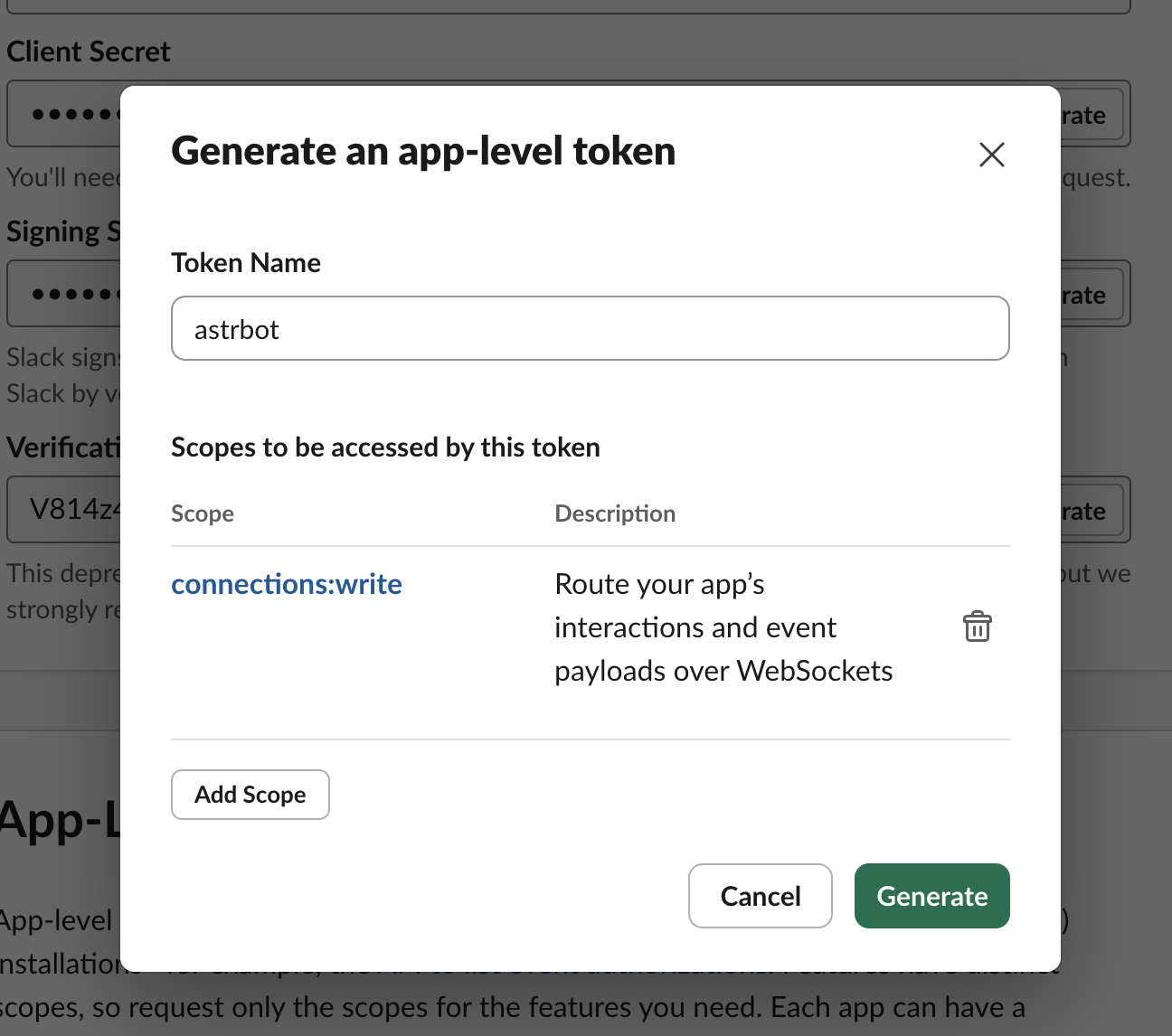
- In the Basic Information page on the left sidebar, find App-Level Tokens and click "Generate Token and Scopes". Enter any Token Name, click Add Scope, select
connections:write, then click "Generate". Click Copy and paste the result into the app_token field on the AstrBot configuration page.
In the OAuth & Permissions page on the left sidebar, add the following permissions under Bot Token Scopes:
- channels:history
- channels:read
- channels:write.invites
- chat:write
- chat:write.customize
- chat:write.public
- files:read
- files:write
- groups:history
- groups:read
- groups:write
- im:history
- im:read
- im:write
- mpim:read
- reactions:read
- reactions:write
- users:read
When subscribing to the
member_joined_channelevent, Slack automatically requiresmpim:readto view basic information about group direct messages the bot has joined.In the OAuth & Permissions page on the left sidebar, click
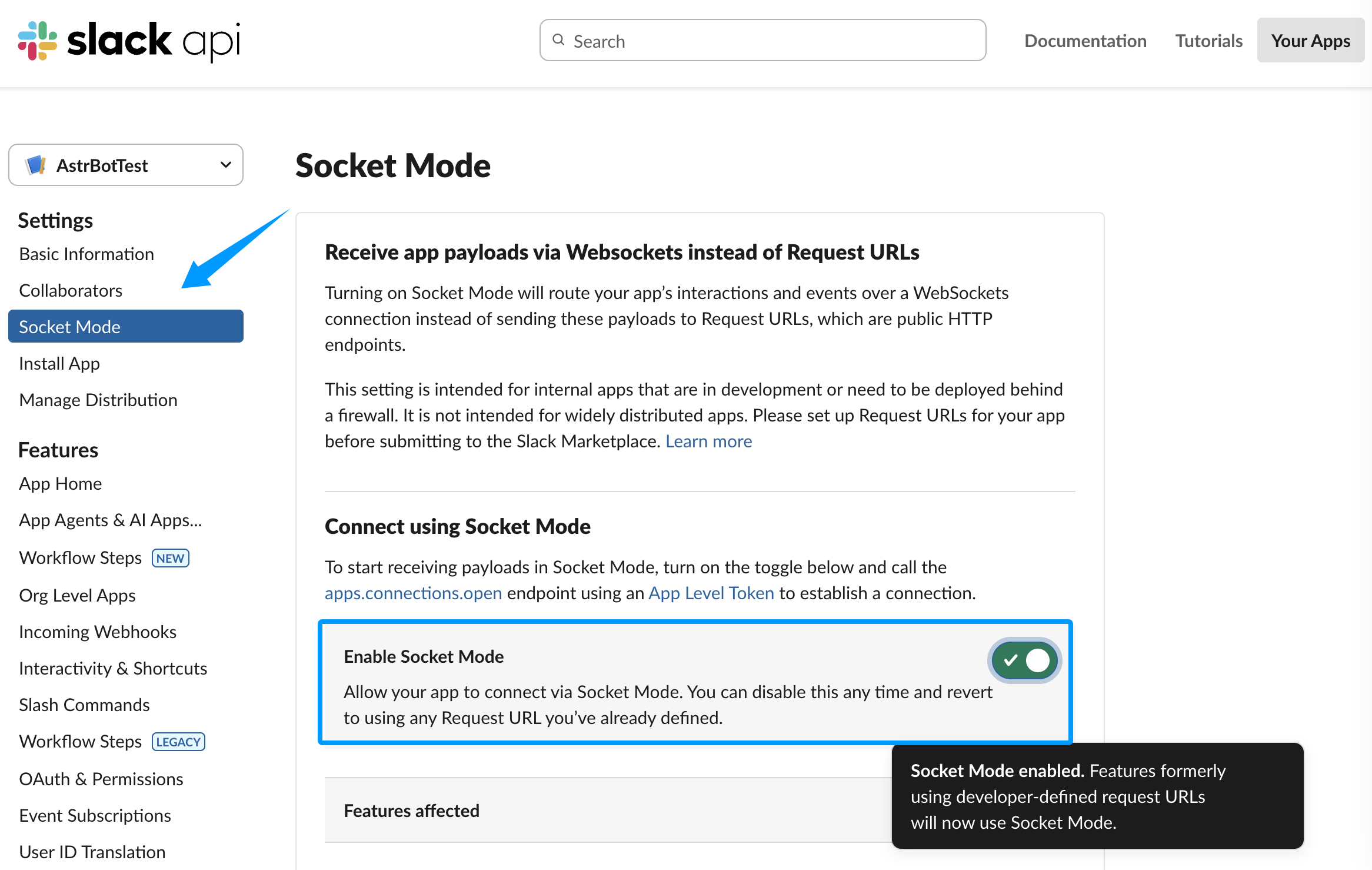
Install to xxxunder OAuth Token (where xxx is your workspace name). Then copy the generated Bot User OAuth Token to the bot_token field in the platform adapter configuration.(Socket only) In the Socket Mode page on the left sidebar, enable Socket Mode.
Start the Platform Adapter
The configuration is now complete. If you're using Socket mode, simply click the Save button in the bottom right corner of the configuration.
If you're using Webhook mode, please keep Unified Webhook Mode (unified_webhook_mode) enabled.
TIP
Before v4.8.0, there is no Unified Webhook Mode. You need to fill in the following configuration items: Slack Webhook Host, Slack Webhook Port, and Slack Webhook Path
Enable Event Subscriptions
After successfully creating the platform adapter, return to the Slack settings. In the Event Subscriptions page on the left sidebar, click Enable Events to enable event reception.
If you're using Webhook mode:
If
Unified Webhook Modeis enabled, after clicking save, AstrBot will automatically generate a unique Webhook callback URL for you. You can find it underData & Logs → Logs, or select the bot inPlatformsand clickView Webhook URL. Enter this URL in theRequest URLfield.If
Unified Webhook Modeis not enabled, enterhttps://your-domain/astrbot-slack-webhook/callbackin theRequest URLfield.
TIP
In Webhook mode, you need to first set up your domain with your DNS provider, then use reverse proxy software to forward requests to port 6185 on the AstrBot server (if Unified Webhook Mode is enabled) or the port specified in your configuration (if Unified Webhook Mode is not enabled). Alternatively, you can use Cloudflare Tunnel. For detailed tutorials, please refer to online resources; this tutorial will not cover these in detail.
After enabling, under Subscribe to bot events below, click Add Bot User Event and add the following events:
- channel_created
- channel_deleted
- channel_left
- member_joined_channel
- member_left_channel
- message.channels
- message.groups
- message.im
- reaction_added
- reaction_removed
- team_join
After adding the events, click Save Changes at the bottom of the page to save the subscriptions before testing below.
Test the Connection
Enter the Slack workspace you just added, navigate to the channel where you want to use the bot, then @ mention the app you just created. Click the Add button in the message subsequently sent by Slackbot to add it to the workspace. Then, @ mention the app and type /help. If it responds successfully, the test is successful.
If you have any questions, please submit an Issue.