Connecting to Misskey Platform
WARNING
- We recommend that before deploying a bot on a Misskey instance you don't manage, you should review the instance rules or seek approval from the instance administration or moderation team, and enable the
Botidentifier for the bot account after deployment. - This project is strictly prohibited from being used for any illegal purposes. If you intend to use AstrBot for illegal industries or activities, we explicitly oppose and refuse your use of this project.
Create AstrBot Misskey Platform Adapter
Open Platforms in the WebUI, click Add Adapter, select Misskey, and fill in the connection details described below. Click Save when finished.
Configure Platform Adapter Settings
On the AstrBot Misskey platform adapter configuration page, we need to fill in the Misskey connection information and configure some adapter behaviors.
Note
Don't forget to click Enable before saving to activate the Misskey platform adapter!
How to obtain the Misskey connection information is described below.
Misskey Instance URL
This is the frontend address of the Misskey instance where your bot account is located, in standard domain format. For example, https://misskey.example.
Obtain Bot Account Access Token
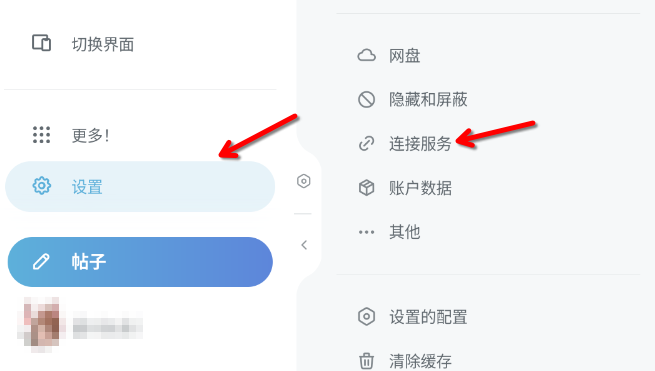
- First, open the Misskey Web frontend page, find and open the
Settings > Connected Servicespage in the frontend sidebar.
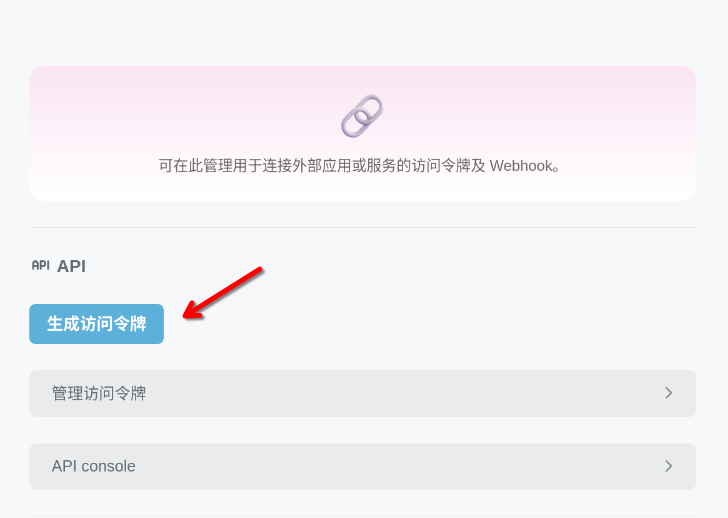
- Click "Generate Access Token" to generate an account access token.
On the access token configuration page that appears, give the token a name, such as
AstrBot.Then we need to configure the relevant permissions for the token to allow the bot to interact with the Misskey instance.
Note
If third-party AstrBot plugins you use require additional permissions, please refer to their documentation to add the corresponding permissions. If you fully trust the bot's deployment environment, you can temporarily enable all permissions to simplify debugging, but we still recommend limiting the bot's permissions in production environments.
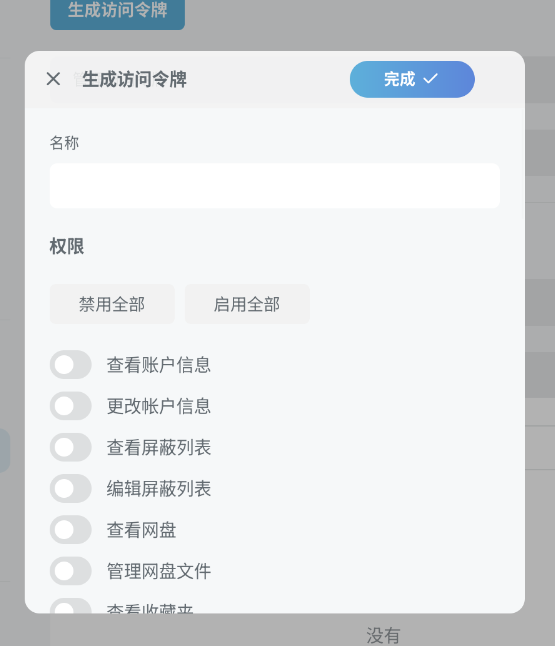
Permissions Required by Default
| Permission Name | Description | Purpose |
|---|---|---|
| Read account information | View basic account information | Obtain bot's own user information and account ID |
| Compose or delete posts | Create, edit, and delete note content | Send message replies and publish content |
| Compose or delete messages | Create, edit, and delete direct messages | Handle direct message conversations |
| View notifications | Receive system notifications and reminders | Obtain mention, reply, and other notification information |
| View messages | Read direct messages and chat history | Receive and process user direct messages |
| View reactions | View replies and reactions to posts | Handle user responses to bot messages |
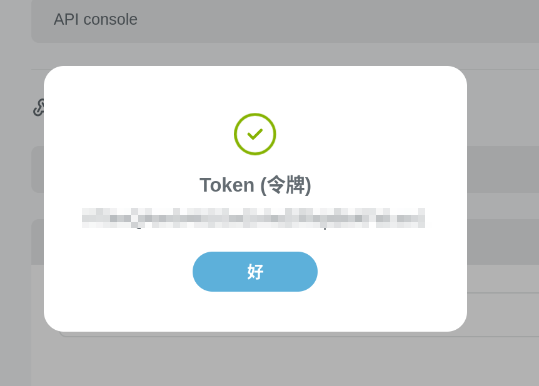
- After completing the permission configuration, click "Done" to view the account access token. Copy the obtained token and paste it into the Access Token input box on the AstrBot configuration page.
Default Post Visibility
Modify the default visibility when the bot posts
| Name | Description |
|---|---|
| public | Anyone can see the bot's posts |
| home | Publish bot posts to the instance home timeline |
| followers | Only users who follow the bot account can see bot posts in the home timeline |
Local Only (Do Not Federate)
When enabled, all posts sent by the bot will not participate in Fediverse federation. This is very suitable for scenarios where you only want to use and distribute the bot's posts within your own instance.
Enable Chat Message Response
Note
Misskey's "Chat" component feature is not supported by all Misskey Fork versions! It cannot federate across instances.
Misskey added "Chat" component support in v2025.4.0 and later versions, and it is only supported by its web frontend, not well-supported by third-party apps.
Enabled by default. When enabled, the bot will respond to private chat messages sent by users in Misskey chat.
History Records
Conversation history for individual users in chats and posts appears under Data & Logs -> Conversations in the AstrBot WebUI. Chat conversations use chat:UserID as the session ID, while traditional posts use note:UserID.
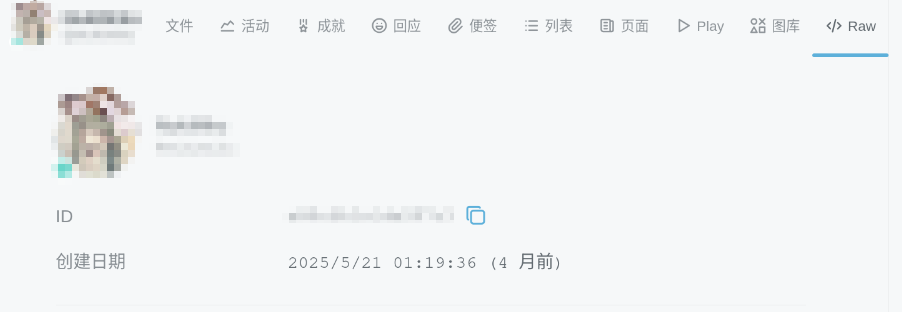
Where is the Misskey user's UserID?
It can be found on the user's personal page in the Raw section. UserID is the unique key identifier for Misskey users within a single instance.
Test the Connection
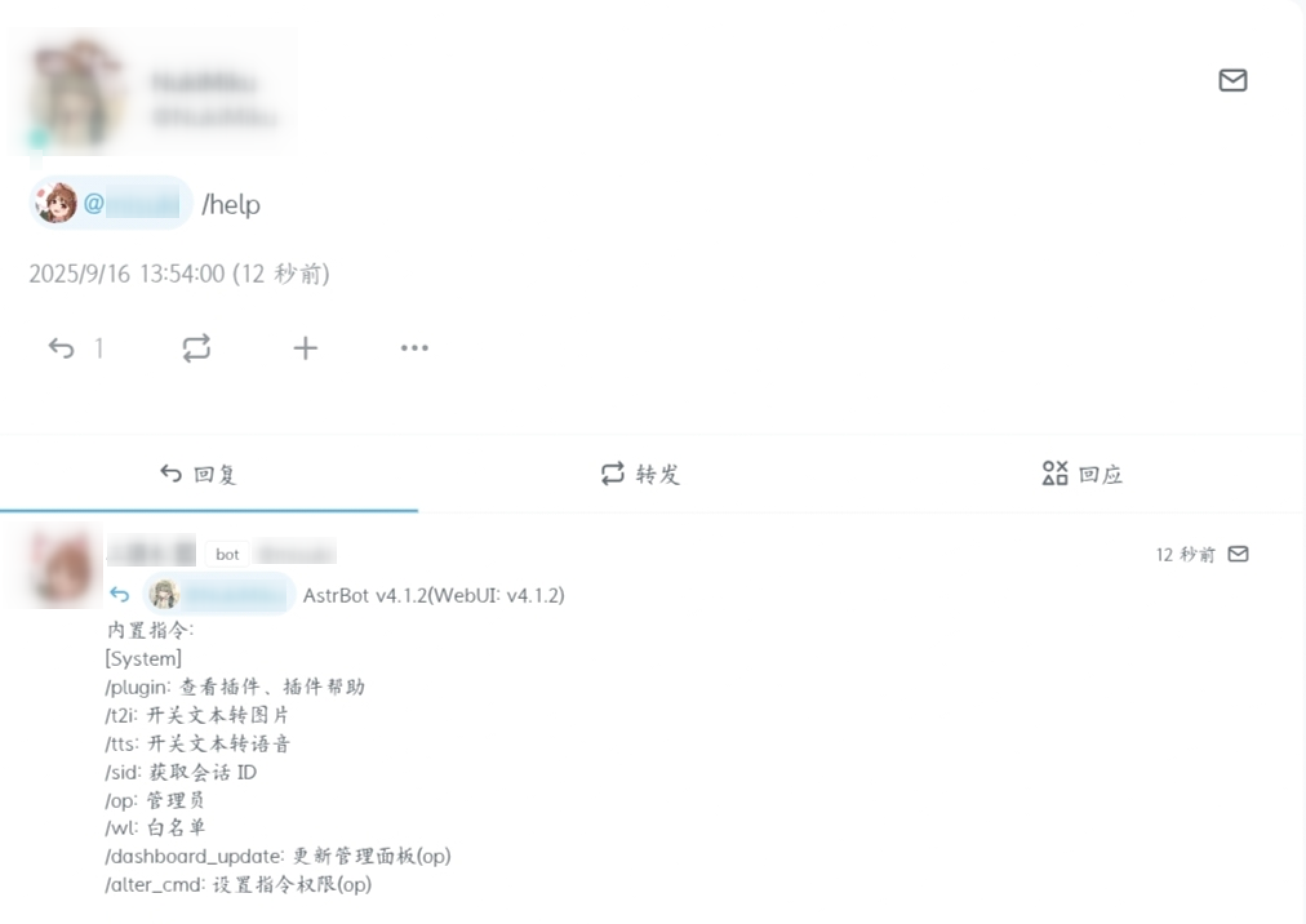
After completing the configuration and enabling it, go to Misskey to create a new post and mention the bot (@mention) to test. If the bot account successfully triggers a reply, the configuration is successful.
Additional Notes
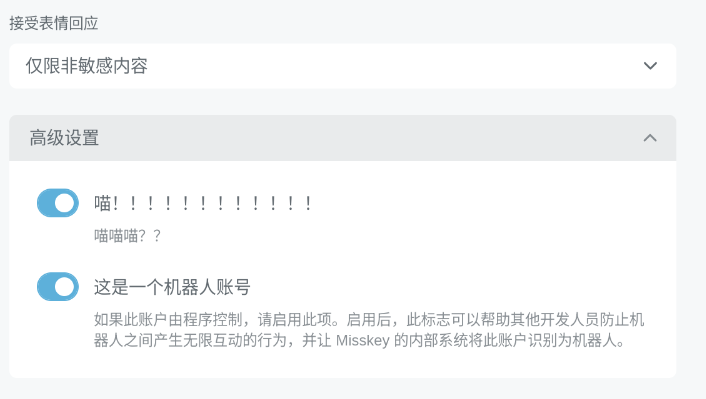
We recommend enabling the Misskey Bot identifier for bot accounts to respect the relevant regulations and rate limits of various Misskey instances, which can also effectively help Misskey instance administrators manage and identify bot usage.
How to Enable
Enable "This is a bot account" in the advanced settings of the bot account's profile page.