
Deploy AstrBot with AstrBot Launcher
Recommended Method 1: AstrBot One-Click Launcher
AstrBot One-Click Launcher supports Windows, macOS, and Linux.
- Open AstrBotDevs/astrbot-launcher
- Optional but recommended: give this project a Star ⭐. Your support helps maintainers keep improving it.
- Find Releases on the right, open the latest release, then download the installer for your system from Assets.
For example:
- Windows x86 users:
AstrBot.Launcher_0.2.1_x64-setup.exe - Windows on Arm users:
AstrBot.Launcher_0.2.1_arm64-setup.exe - macOS Apple Silicon users:
AstrBot.Launcher_0.2.1_aarch64.dmg
For macOS users, if you see "damaged and can't be opened", it is caused by macOS security restrictions on unsigned apps. Fix it with:
- Open Terminal.
- Run:
xattr -dr com.apple.quarantine /Applications/AstrBot\ Launcher.app - Reopen AstrBot Launcher.
Method 2: Legacy Windows Installer
We still recommend the One-Click Launcher above because it is simpler, more automated, and better for most users.
The legacy installer is a PowerShell script, very small (<20KB). It requires PowerShell (usually built in on Windows 10 and newer).
WARNING
Python 3.12 or later must be installed, and environment variables must be configured.
TIP
If deployment fails, try Docker deployment or manual deployment instead.
Download the Legacy Installer
Open https://github.com/AstrBotDevs/AstrBotLauncher/releases/latest
Download Source code (zip) and extract it.
Run the Legacy Installer
The video may be outdated. Follow the steps here.
After extraction, open the folder.
Type PowerShell in the address bar and press Enter:
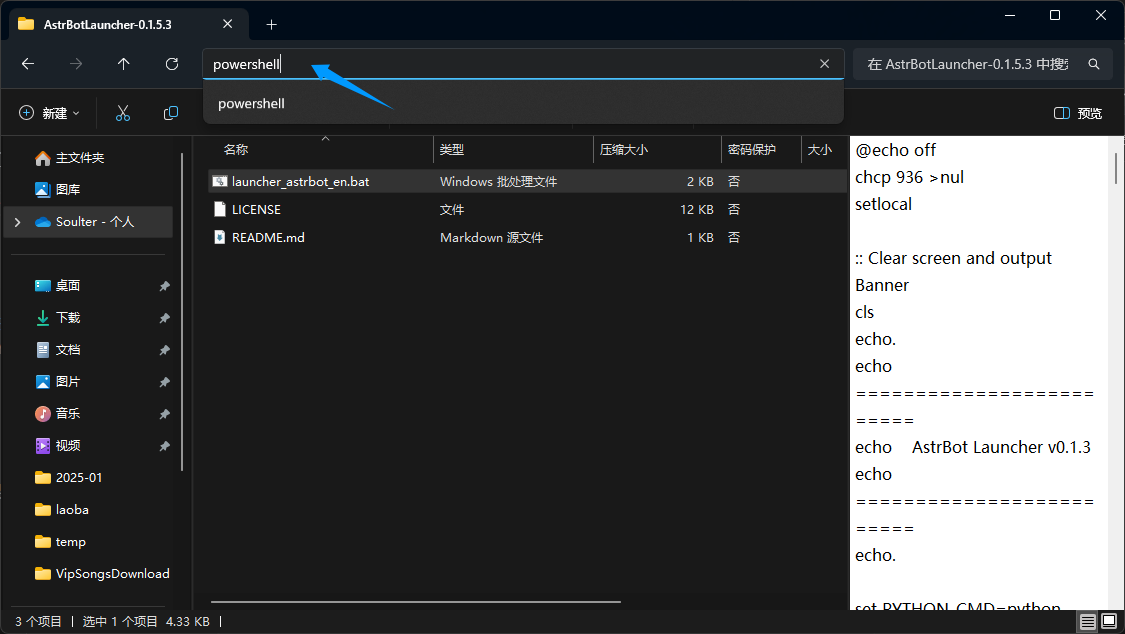
Drag launcher_astrbot_en.bat into the PowerShell window and press Enter.
WARNING
- The script is safe. If you see
Windows protected your PC, clickMore infoand thenRun anyway. - By default, it uses
python. If you want to specify another interpreter path/command, editlauncher_astrbot_en.bat, findset PYTHON_CMD=python, and replacepythonwith your own command/path.
If Python is not detected, the script exits with a prompt.
The script checks whether an AstrBot folder exists. If not, it downloads the latest AstrBot source from GitHub, installs dependencies, and runs it automatically.
Done
If everything works, you will see AstrBot logs.
Without errors, you should see a log like 🌈 Management panel started, accessible at with several URLs. Open one URL to access AstrBot WebUI.
TIP
First-time logins use the random password generated on startup and printed to logs. Use that password (and the username shown in the logs, usually astrbot) to log in, then change it immediately.
If WebUI returns 404: Download dist.zip from release, extract it into AstrBot/data, then restart the computer if needed.
Then deploy at least one messaging platform adapter to start using AstrBot in IM apps.
Error: Python is not installed
If you still get this error after installing Python and restarting, your PATH is likely incorrect.
Method 1
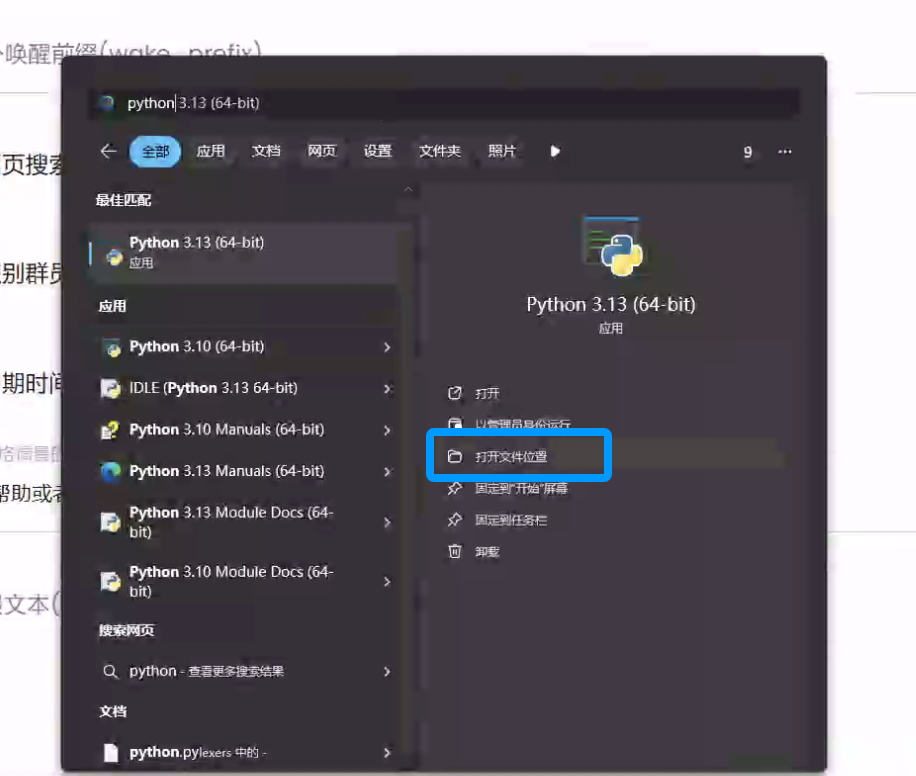
Search for Python in Windows and open its file location:
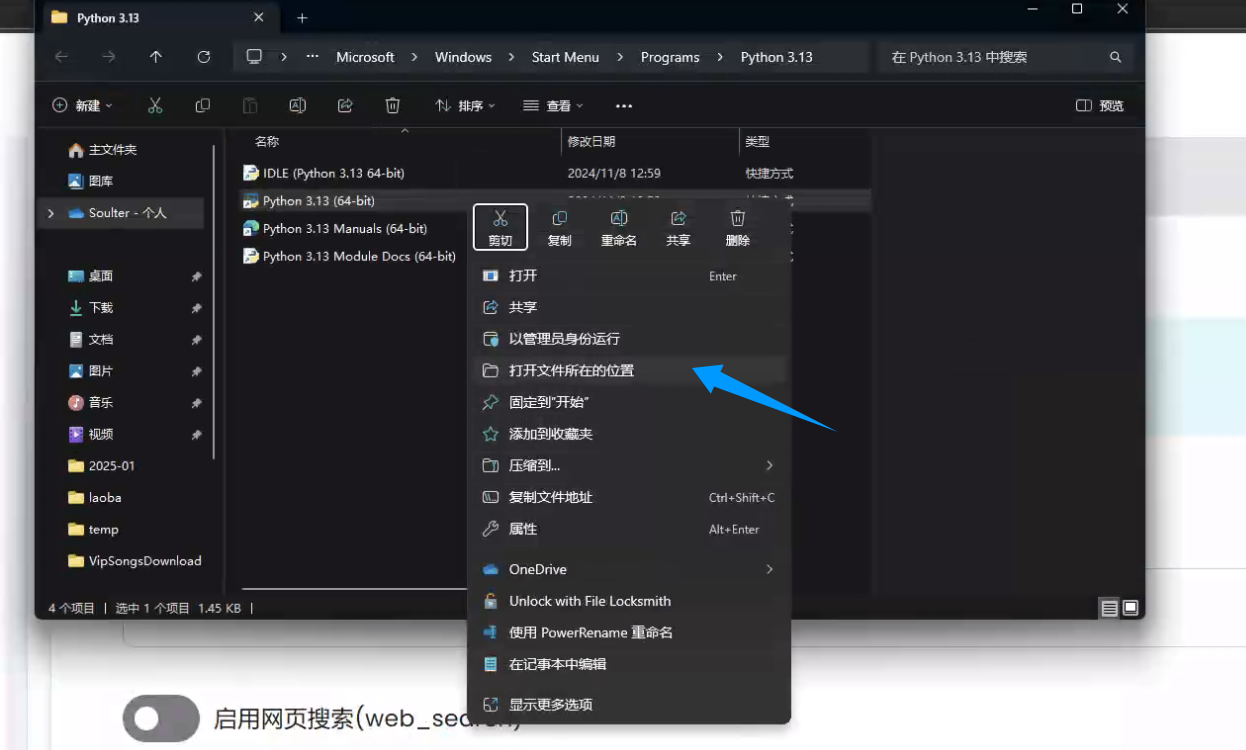
Right-click the shortcut below and open file location:
Copy the file path:
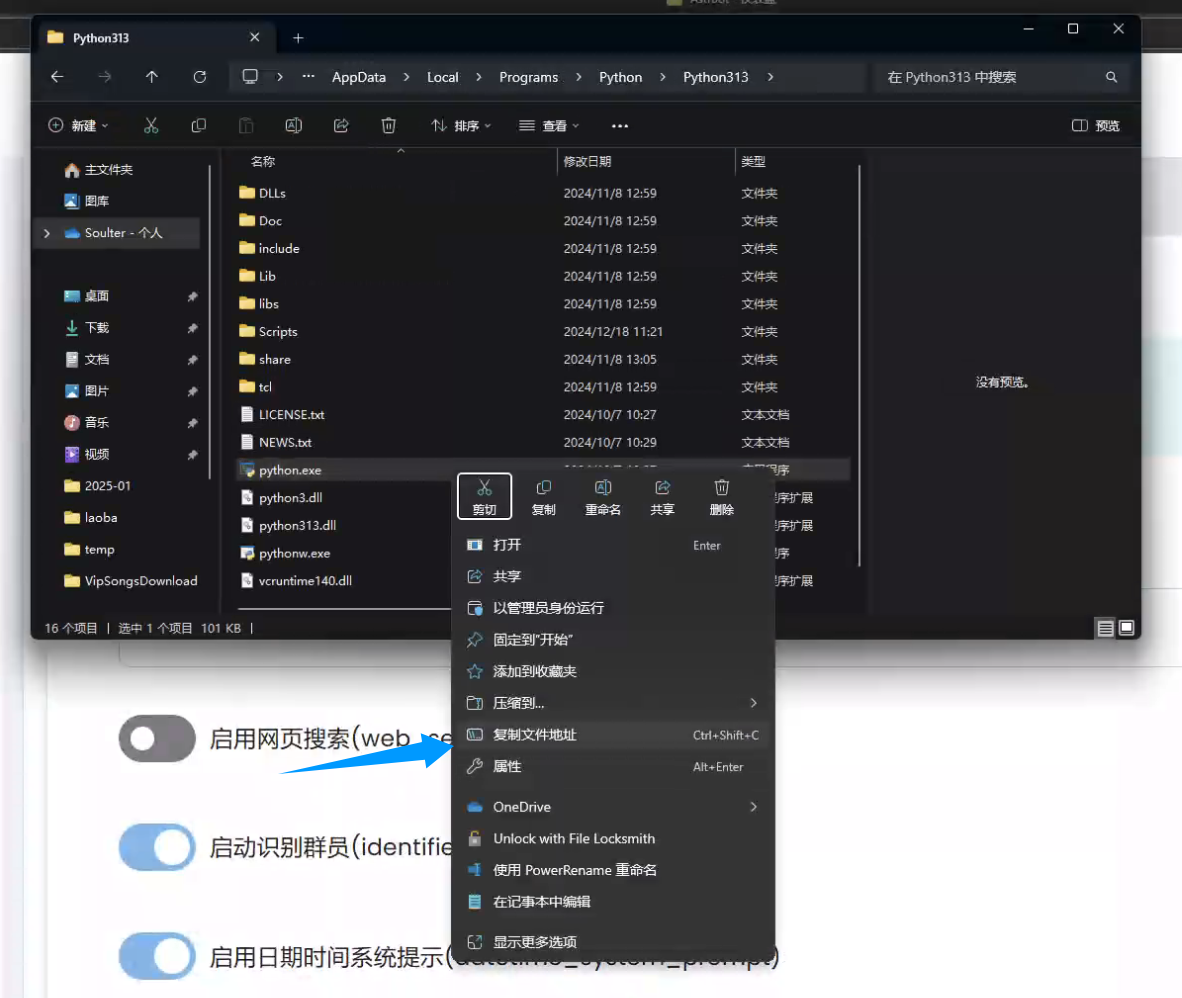
Edit launcher_astrbot_en.bat in Notepad, find set PYTHON_CMD=python, and replace python with your interpreter command/path. Keep quotes if your path contains spaces.
Method 2
Reinstall Python, check Add Python to PATH during installation, then restart your computer.